BUILDING 3D
MEDICAL SIMULATIONS
Build immersive medical training environments using Three.js. Walk through a virtual operating room with first-person controls, GLTF model loading, and collision detection.
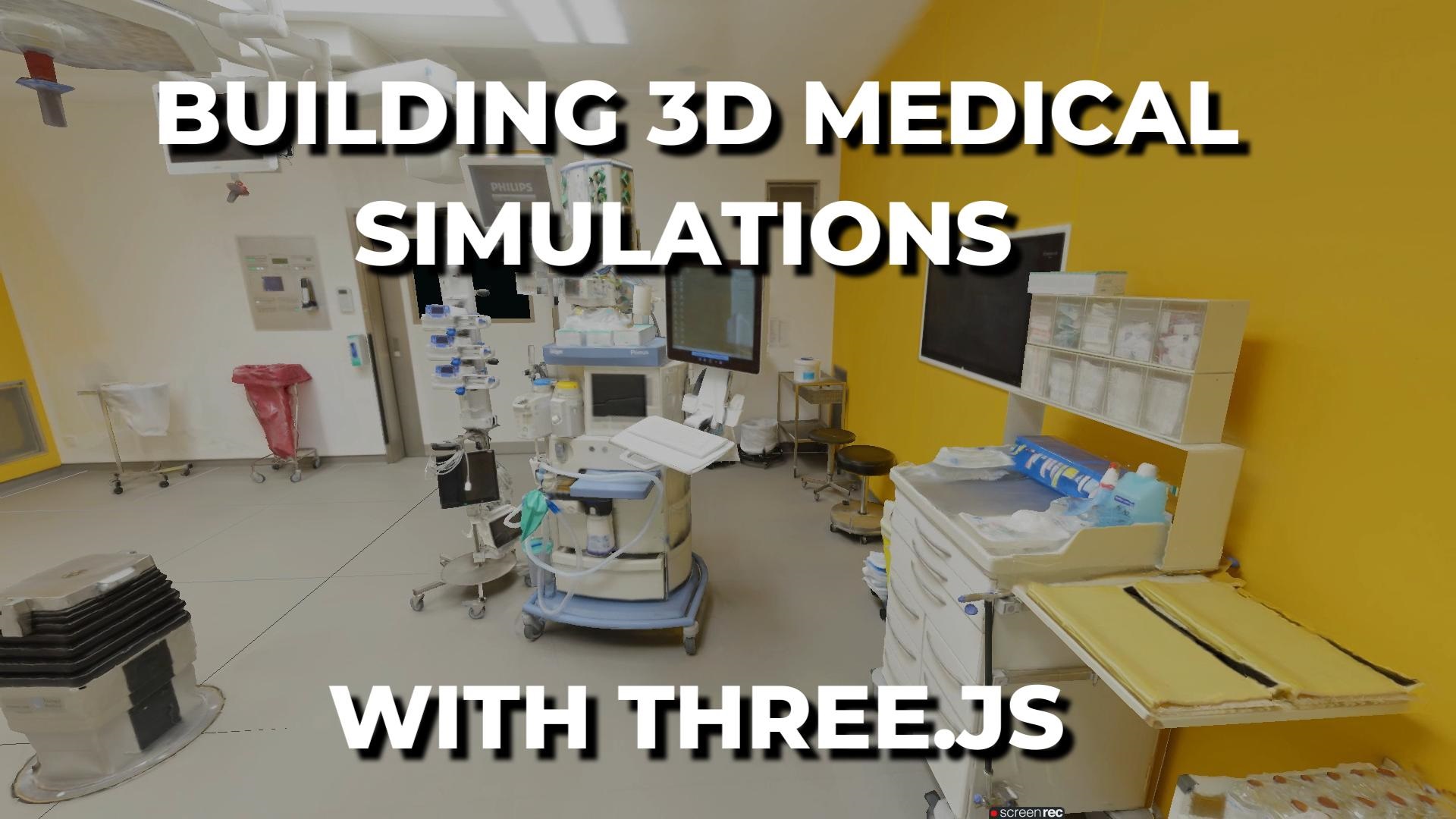
LIVE DEMO
The operating room is running live in the background. Launch the full-screen demo and walk through it with WASD / arrow keys — mouse to look, click to lock the cursor.
WASD / arrows to move · Mouse to look · Esc to exit
WANT A MORE ADVANCED GROK BOT TUTORIAL?
Take it further: the armored soldier tutorial turns one concept image into a rigged, animated, playable game character with Grok Bot — walk, run, jump and fire with full gun effects, fire-on-the-move combo clips, and a drive-it-yourself live demo (WASD).
See the Playable Soldier Tutorial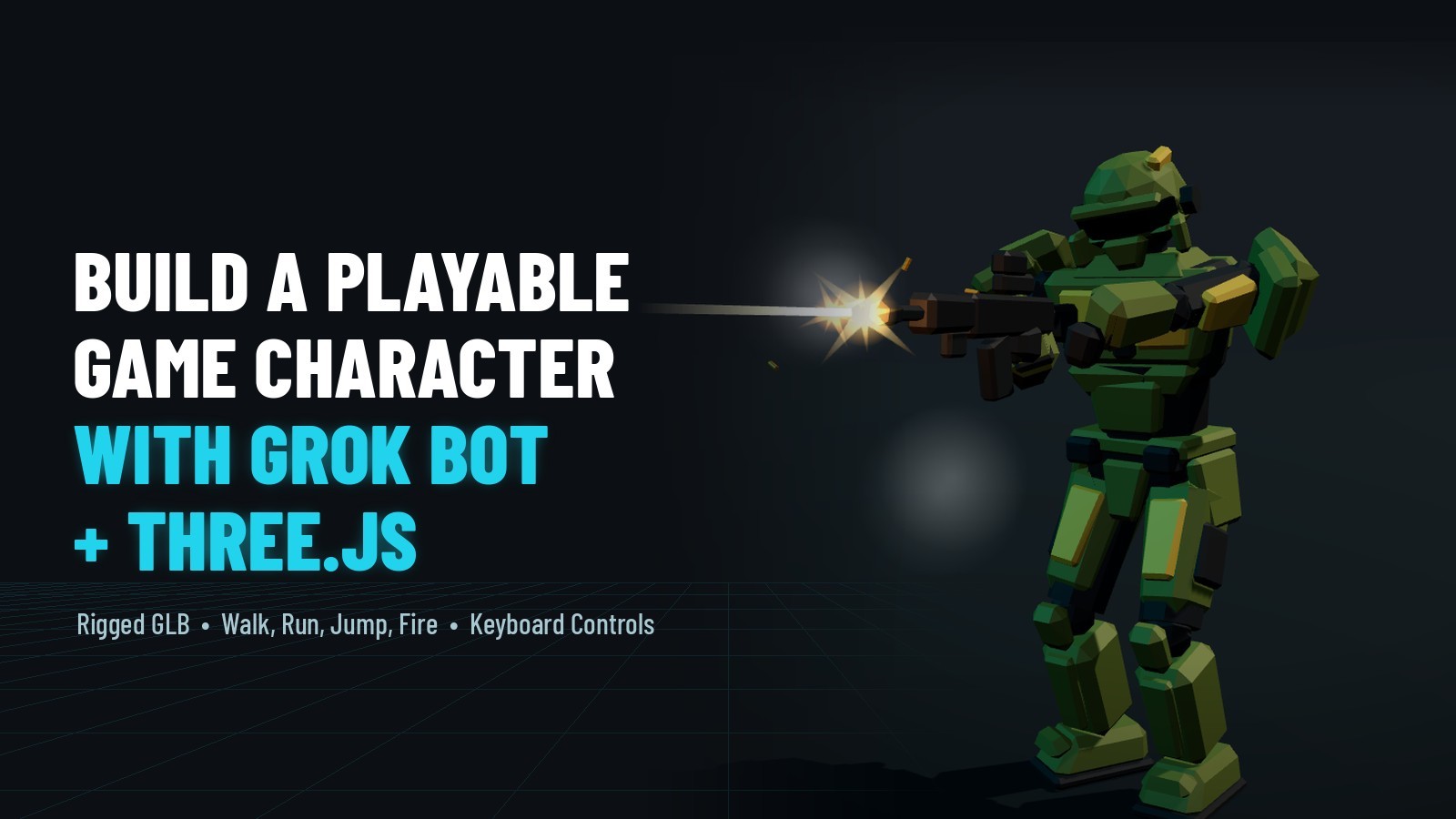
Introduction
The world of web-based medical education has seen tremendous growth thanks to WebGL and the powerful Three.js library. Three.js makes it possible to create complex, high-performance, interactive 3D environments that run smoothly in any modern web browser without plugins or installations. This technology is revolutionizing medical training by allowing educators and developers to build realistic simulated environments where medical students, residents, and practicing professionals can practice procedures and explore human anatomy in three dimensions.
Using Three.js, developers can load detailed 3D models of hospital operating rooms, surgical tools, patient avatars, and anatomical structures. The library supports physically-based rendering, advanced lighting, shadows, particle systems, and real-time animations — all essential for creating believable medical training simulations. Trainees can walk through a virtual operating theater using first-person controls, interact with equipment, practice sterile techniques, or even rehearse complex surgical steps before ever touching a real patient.
In this tutorial, you'll build a complete first-person walkthrough of a 3D operating room. You'll learn how to load GLTF models, implement PointerLockControls for immersive mouse-look navigation, add WASD keyboard movement with acceleration, and implement boundary collision detection — all the core techniques needed for any interactive 3D training environment.
WANT TO SEE AI BUILD A 3D CHARACTER?
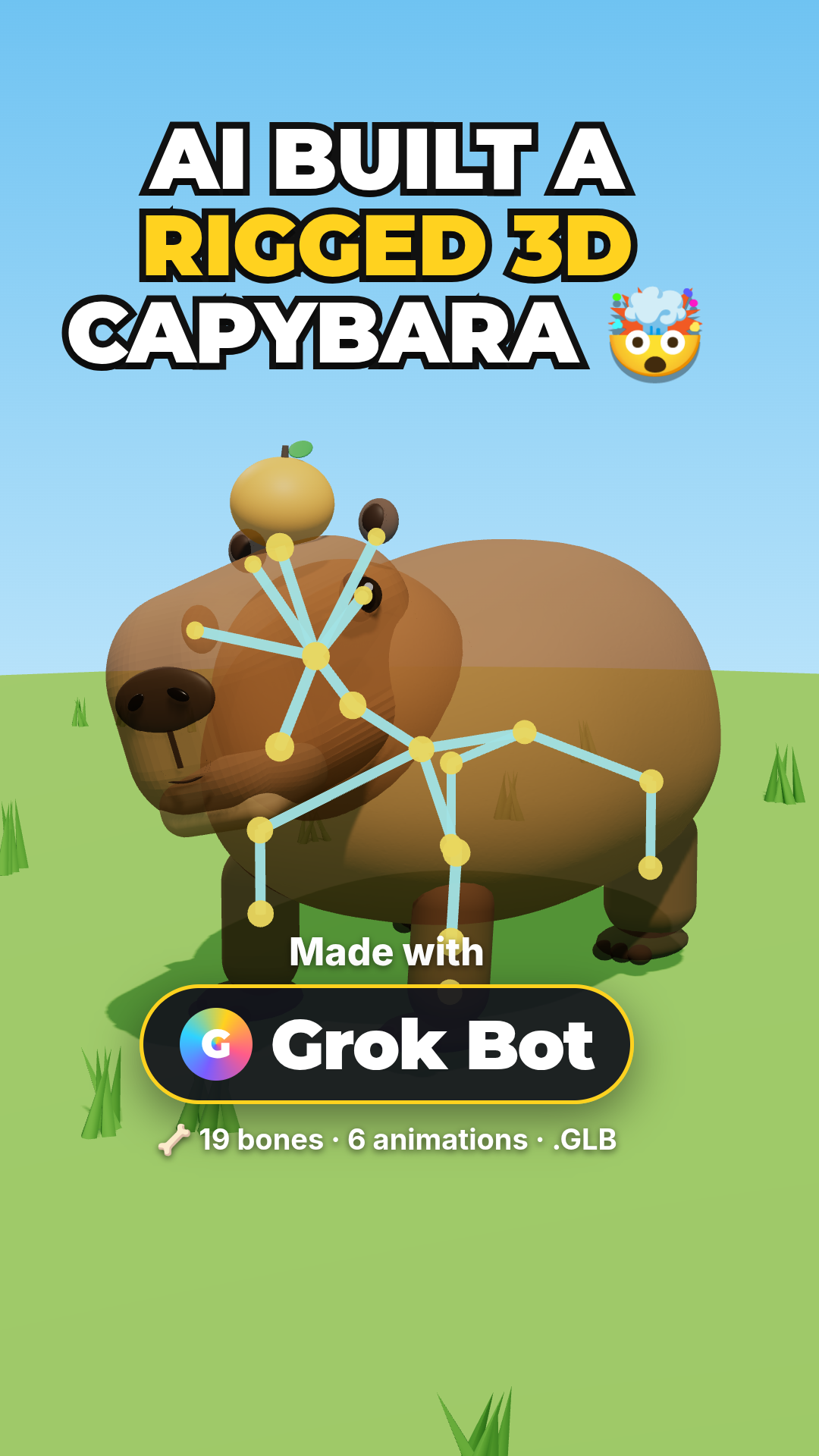
Watch Grok Bot AI build a fully rigged, animated capybara in Three.js straight from plain-English prompts — model loading, skeleton, and looping animation, all explained step by step.
WANT A RIGGED CHARACTER YOU CAN DRIVE?
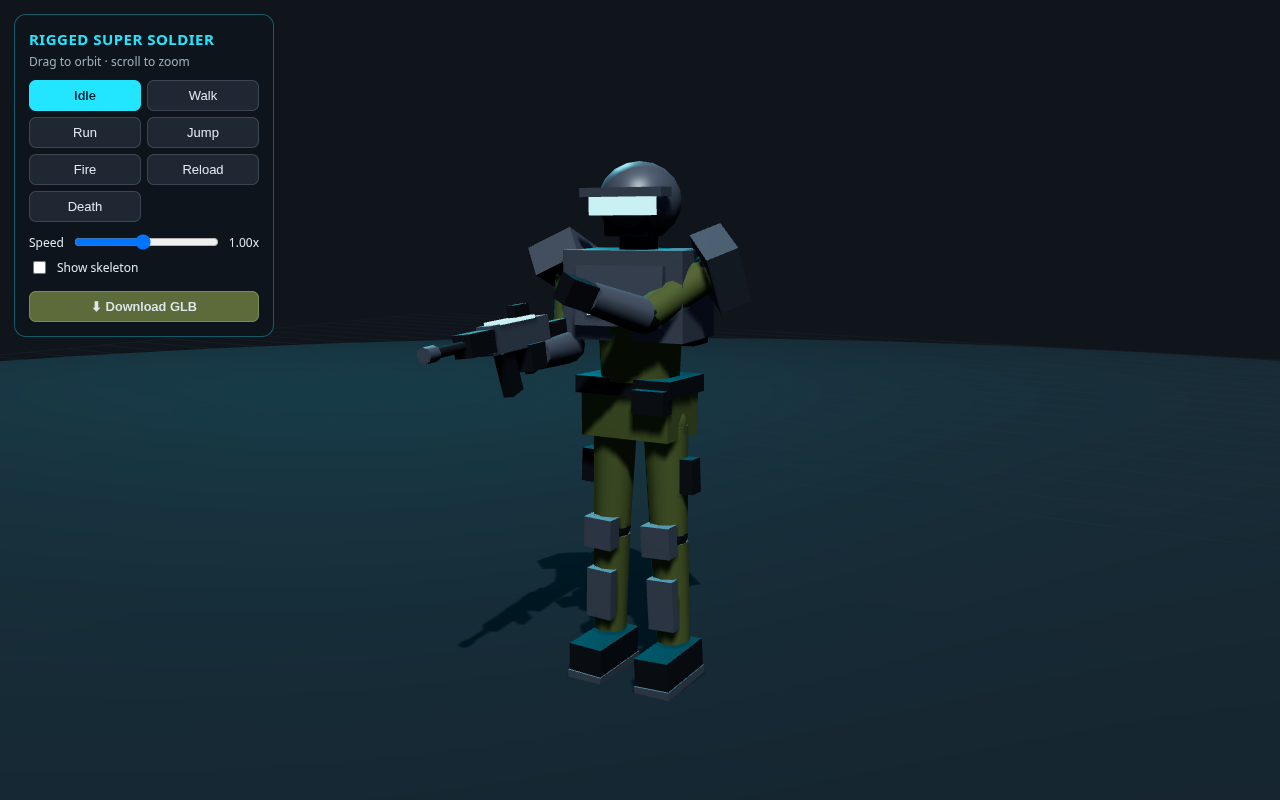
The companion tutorial loads a free rigged super soldier GLB in Three.js and gives it a full keyboard controller — WASD to move, Shift to run, Space to jump, F to fire. Same rig-and-animate idea, taken to a playable character.
Frequently Asked Questions
Can Three.js be used for medical simulations and training?
Yes. Three.js can render detailed anatomical models, surgical environments, and interactive medical simulations directly in the browser. It supports GLTF model loading, first-person navigation with PointerLockControls, and real-time lighting — making it suitable for medical education and training without any plugins or downloads.
What is PointerLockControls in Three.js?
PointerLockControls provides first-person camera navigation by locking the mouse cursor and using mouse movement for looking around. Combined with WASD keyboard input for movement, it creates an immersive walkthrough experience similar to first-person video games — ideal for virtual environments like operating rooms.
How do you load 3D anatomical models in a web browser?
Export anatomical models from tools like Blender or medical imaging software as GLTF/GLB files. Use Three.js GLTFLoader to load them into a web scene. The models retain their materials, textures, and hierarchy. You can then add interactivity like clicking to highlight organs or hovering to show labels.
What are the advantages of browser-based 3D medical simulations?
Browser-based simulations require no software installation, work on any device with a modern browser, allow instant updates without app store approval, and are easily shareable via URL. Students and medical professionals can access training materials from anywhere without specialized hardware.
What You'll Learn
- Loading detailed GLTF/GLB 3D models into a Three.js scene
- Implementing PointerLockControls for immersive first-person navigation
- WASD keyboard movement with smooth acceleration
- Boundary collision detection to keep users within the environment
- Proper lighting setup for realistic medical visualization
- Responsive rendering that adapts to any screen size
Prerequisites
Basic Three.js knowledge (scene, camera, renderer setup). Familiarity with loading external 3D models is helpful but not required — we cover it step by step. You'll need a GLTF/GLB model file to load (any 3D environment model works).
SEE 3D AND 2D BROWSER GAMES IN ACTION
My free browser games are full Three.js 3D experiences — no download, they run right in your browser.