Why Lighting Matters
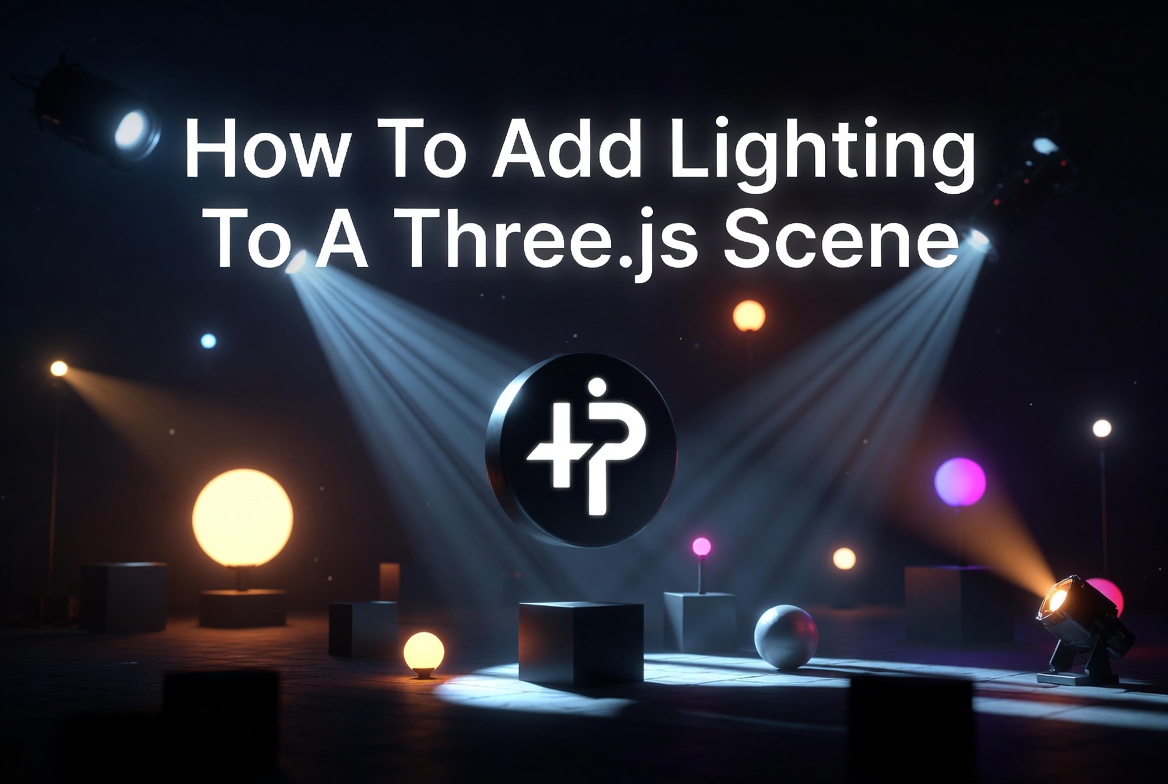
Lighting is one of the most important aspects of any 3D scene. Without it, your objects appear flat and lifeless — just solid colored shapes with no depth or dimension. Proper lighting transforms a basic scene into something that feels real and immersive.
Three.js provides several built-in light types that are easy to set up and highly configurable. In this article we'll cover the four most commonly used lights and show you exactly how to use them with a complete working code example.
One important thing to know before we start — lighting only affects materials that respond to light. MeshBasicMaterial ignores all lights completely. You need to use MeshPhongMaterial, MeshLambertMaterial, or MeshStandardMaterial to see any lighting effects on your objects.
The Four Main Light Types
AmbientLight illuminates all objects in the scene equally from all directions. It has no position and casts no shadows. Think of it as the base level of brightness in your scene — it prevents objects from being completely black in unlit areas. Always keep the intensity low (0.2—0.4) so it doesn't wash out your other lights.
DirectionalLight simulates a distant light source like the sun. Its rays are parallel and travel in a single direction regardless of where the light is positioned. It's the most commonly used light for outdoor scenes and is the best choice when you need shadows across a large area.
PointLight emits light in all directions from a single point in space, just like a light bulb. The intensity falls off with distance, which you can control with the distance and decay parameters. Great for lamps, torches, explosions, or any localized light source.
SpotLight emits a cone of light in a specific direction, like a flashlight or stage spotlight. You can control the cone angle, the softness of the edge (penumbra), and it fully supports shadow casting. It's the most flexible and dramatic of the four light types.
Step-By-Step Breakdown
Here's exactly what each section of the code does:
Create the Scene, Camera & Renderer
The scene is the container for everything. The camera defines what the viewer sees. The renderer draws it all onto the canvas using WebGL.
const scene = new THREE.Scene();

const camera = new THREE.PerspectiveCamera(75, window.innerWidth / window.innerHeight, 0.1, 1000);
camera.position.set(0, 3, 8);
camera.lookAt(0, 0, 0);

const renderer = new THREE.WebGLRenderer({ antialias: true });
renderer.setSize(window.innerWidth, window.innerHeight);
renderer.shadowMap.enabled = true;
document.body.appendChild(renderer.domElement);
Add a Floor
A flat plane rotated 90 degrees acts as the floor. Setting receiveShadow = true allows shadows from other objects to appear on it.
const floor = new THREE.Mesh(
    new THREE.PlaneGeometry(20, 20),
    new THREE.MeshPhongMaterial({ color: 0x222222 })
);
floor.rotation.x = -Math.PI / 2;
floor.position.y = -1.5;
floor.receiveShadow = true;
scene.add(floor);
Add 3D Objects
A blue sphere and an orange box. Both use MeshPhongMaterial which responds to light. Setting castShadow = true makes them cast shadows onto the floor.
const sphere = new THREE.Mesh(
    new THREE.SphereGeometry(1, 32, 32),
    new THREE.MeshPhongMaterial({ color: 0x0088ff, shininess: 100 })
);
sphere.castShadow = true;
scene.add(sphere);

const box = new THREE.Mesh(
    new THREE.BoxGeometry(1.5, 1.5, 1.5),
    new THREE.MeshPhongMaterial({ color: 0xff4400, shininess: 80 })
);
box.position.set(3, 0, 0);
box.castShadow = true;
scene.add(box);
AmbientLight — Base Illumination
Illuminates all objects equally from all directions. No position, no shadows. Keeps dark areas from going completely black. Keep intensity low (0.2—0.4).
const ambientLight = new THREE.AmbientLight(0xffffff, 0.3);
scene.add(ambientLight);
DirectionalLight — Sun-Like Light
Parallel rays from a single direction, like the sun. Best for outdoor scenes and large shadow coverage. Position determines the angle of the light rays.
const dirLight = new THREE.DirectionalLight(0xffffff, 0.8);
dirLight.position.set(10, 10, 5);
dirLight.castShadow = true;
scene.add(dirLight);
PointLight — Light Bulb Effect
Emits light in all directions from a single point, like a light bulb. The third parameter is the max distance the light reaches before fading out completely.
const pointLight = new THREE.PointLight(0x00ffaa, 1.5, 20);
pointLight.position.set(-4, 3, 2);
scene.add(pointLight);
SpotLight — Focused Cone of Light
A cone of light aimed in a direction, like a stage spotlight. angle controls the cone width, penumbra softens the edge. Supports shadow casting.
const spotLight = new THREE.SpotLight(0xffaa00, 1.5);
spotLight.position.set(0, 8, 0);
spotLight.angle = Math.PI / 8;
spotLight.penumbra = 0.2;
spotLight.castShadow = true;
scene.add(spotLight);
Animation Loop & Resize Handler
The animation loop runs 60 times per second, rotating the objects and re-rendering the scene each frame. The resize handler keeps the canvas filling the window correctly.
function animate() {
    requestAnimationFrame(animate);
    sphere.rotation.y += 0.01;
    box.rotation.x += 0.01;
    box.rotation.y += 0.01;
    renderer.render(scene, camera);
}
animate();

window.addEventListener('resize', () => {
    camera.aspect = window.innerWidth / window.innerHeight;
    camera.updateProjectionMatrix();
    renderer.setSize(window.innerWidth, window.innerHeight);
});
Complete Code Example
Copy and paste this full example, or press Launch to run it right now:
<!DOCTYPE html>
<html lang="en">
<head>
    <title>Three.js Lighting Example</title>
    <style>
        body { margin: 0; overflow: hidden; background: #000; }
        canvas { display: block; }
    </style>
</head>
<body>
    <script src="https://cdnjs.cloudflare.com/ajax/libs/three.js/r134/three.min.js"></script>
    <script>
        const scene = new THREE.Scene();

        const camera = new THREE.PerspectiveCamera(75, window.innerWidth / window.innerHeight, 0.1, 1000);
        camera.position.set(0, 3, 8);
        camera.lookAt(0, 0, 0);

        const renderer = new THREE.WebGLRenderer({ antialias: true });
        renderer.setSize(window.innerWidth, window.innerHeight);
        renderer.shadowMap.enabled = true;
        document.body.appendChild(renderer.domElement);

        // Floor
        const floor = new THREE.Mesh(
            new THREE.PlaneGeometry(20, 20),
            new THREE.MeshPhongMaterial({ color: 0x222222 })
        );
        floor.rotation.x = -Math.PI / 2;
        floor.position.y = -1.5;
        floor.receiveShadow = true;
        scene.add(floor);

        // Sphere
        const sphere = new THREE.Mesh(
            new THREE.SphereGeometry(1, 32, 32),
            new THREE.MeshPhongMaterial({ color: 0x0088ff, shininess: 100 })
        );
        sphere.castShadow = true;
        scene.add(sphere);

        // Box
        const box = new THREE.Mesh(
            new THREE.BoxGeometry(1.5, 1.5, 1.5),
            new THREE.MeshPhongMaterial({ color: 0xff4400, shininess: 80 })
        );
        box.position.set(3, 0, 0);
        box.castShadow = true;
        scene.add(box);

        // 1. AmbientLight - soft base illumination, no shadows
        const ambientLight = new THREE.AmbientLight(0xffffff, 0.3);
        scene.add(ambientLight);

        // 2. DirectionalLight - sun-like parallel rays with shadows
        const dirLight = new THREE.DirectionalLight(0xffffff, 0.8);
        dirLight.position.set(10, 10, 5);
        dirLight.castShadow = true;
        scene.add(dirLight);

        // 3. PointLight - light bulb, emits in all directions
        const pointLight = new THREE.PointLight(0x00ffaa, 1.5, 20);
        pointLight.position.set(-4, 3, 2);
        scene.add(pointLight);

        // 4. SpotLight - focused cone of light with shadows
        const spotLight = new THREE.SpotLight(0xffaa00, 1.5);
        spotLight.position.set(0, 8, 0);
        spotLight.angle = Math.PI / 8;
        spotLight.penumbra = 0.2;
        spotLight.castShadow = true;
        scene.add(spotLight);

        function animate() {
            requestAnimationFrame(animate);
            sphere.rotation.y += 0.01;
            box.rotation.x += 0.01;
            box.rotation.y += 0.01;
            renderer.render(scene, camera);
        }
        animate();

        window.addEventListener('resize', () => {
            camera.aspect = window.innerWidth / window.innerHeight;
            camera.updateProjectionMatrix();
            renderer.setSize(window.innerWidth, window.innerHeight);
        });
    </script>
</body>
</html>
Three.js Programming Books
Tips & Best Practices
Enabling shadows requires three things: set renderer.shadowMap.enabled = true, set castShadow = true on your lights and meshes, and set receiveShadow = true on any surface you want shadows to appear on like the floor or walls.
Light intensity — start low and work up. A common mistake is setting intensity too high which washes out your materials and removes all sense of depth. For a natural look try AmbientLight at 0.3, DirectionalLight at 0.8, and keep point and spot lights between 1.0 and 2.0.
Colored lights are a powerful tool for setting mood. Warm orange and yellow tones feel natural for indoor or sunset scenes. Cool blue tones work great for night scenes or sci-fi environments. Try tinting your AmbientLight slightly blue and your DirectionalLight slightly warm for a natural outdoor look.

Performance — shadow-casting lights are expensive, especially on mobile. Limit yourself to 1—2 shadow-casting lights per scene. Use renderer.shadowMap.type = THREE.PCFSoftShadowMap for softer, more realistic shadows at a small performance cost.
HemisphereLight is a great alternative to AmbientLight for outdoor scenes. It takes a sky color and a ground color and creates a natural gradient illumination that makes scenes look far more realistic than a flat ambient light alone.
By combining these light types you can create everything from bright sunny outdoor scenes to dark moody interiors. Experiment with colors, positions and intensities to find the look that works best for your project.