ANIMATED SPHERES
& FRAGMENT SHADERS
Animate a swarm of bouncing 3D spheres over a living GLSL fragment-shader floor in the browser with Three.js — real GPU shader animation, no libraries beyond Three.js.
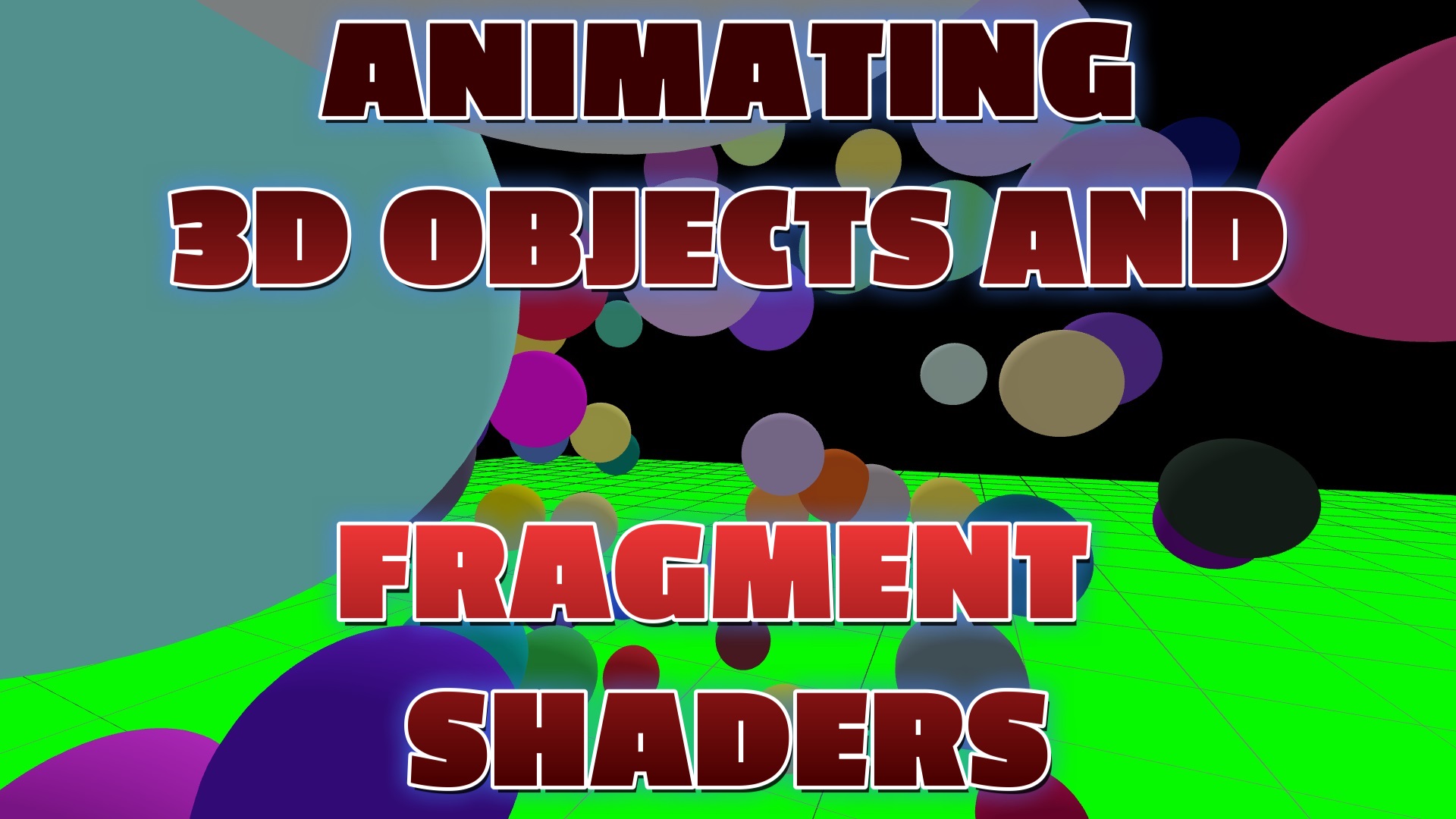
LIVE DEMO
The bouncing colored spheres over the shifting shader floor behind this page are the live demo. Click and drag with the mouse to orbit. Scroll to keep reading — on mobile just swipe to scroll.
Introduction
This free tutorial combines two of the most rewarding Three.js techniques: animating many objects and writing your own GLSL shader. You will scatter 100 colored spheres in a box, give each a velocity so they bounce off invisible walls, and lay them over a floor painted by a live fragment shader that cycles colors over time.
The shader runs on the GPU, once per pixel, driven by a single time uniform you tick up each frame. It is the same technique behind gradients, water, fire, and glow effects. Copy it, paste it, and it runs.
Frequently Asked Questions
What is a fragment shader in Three.js?
A fragment shader is a small GLSL program that runs on the GPU once for every pixel of a surface, deciding that pixel's final color. In Three.js you supply it through a ShaderMaterial. Because it runs per-pixel on the GPU, you can create smooth animated gradients, patterns, and effects that would be far too slow to compute in JavaScript.
How do you animate a GLSL shader in Three.js?
Pass a uniform such as time into the ShaderMaterial, then increase it every frame in your animation loop (for example material.uniforms.time.value += 0.05). Inside the fragment shader, use that time value with functions like sin() to shift colors and patterns over time, producing a living, animated surface.
What is the difference between a vertex and a fragment shader?
A vertex shader runs once per vertex and positions the geometry (it outputs gl_Position). A fragment shader runs once per pixel that the geometry covers and outputs the pixel color (gl_FragColor). A ShaderMaterial in Three.js needs both: the vertex shader places the shape, the fragment shader paints it.
How do you animate many 3D objects efficiently in Three.js?
Give each object a velocity vector and add it to the object's position every frame, flipping the velocity when it hits a boundary to make it bounce. Reuse a single shared geometry across all the meshes so the GPU can render them efficiently. This lets you animate a hundred bouncing spheres smoothly at 60fps.
Is this Three.js shader tutorial free?
Yes. This is a completely free tutorial. The full source code is on the page, you can copy it, and the bouncing spheres over an animated shader floor behind this page are the live demo. No sign-in or membership is required.
How It Works
- 1Scene, camera, renderer. Standard Three.js setup with a transparent renderer pinned behind the page content.
- 2Write a ShaderMaterial. Provide a vertex shader (positions the geometry) and a fragment shader (colors each pixel), plus a
timeuniform. - 3Animate the shader. Inside the fragment shader, feed
timeintosin()so the red/green/blue channels shift, creating a living gradient. - 4Spawn the spheres. Reuse one
SphereGeometryfor 100 meshes, each a random color and a randomvelocity. - 5Bounce them. Each frame add velocity to position; when a sphere passes a boundary, flip that velocity axis so it bounces back.
- 6Tick & render. Bump
uniforms.time.valueand render insiderequestAnimationFrame.
The Full Code
Paste this into a file named index.html and open it in any modern browser.
<!DOCTYPE html>
<html lang="en">
<head>
  <meta charset="utf-8">
  <meta name="viewport" content="width=device-width, initial-scale=1">
  <title>Three.js Animated Spheres & Fragment Shader</title>
  <style> body { margin: 0; background: #000; } </style>
  <script type="importmap">
  {
    "imports": {
      "three": "https://cdn.jsdelivr.net/npm/three@0.160/build/three.module.js",
      "three/addons/": "https://cdn.jsdelivr.net/npm/three@0.160/examples/jsm/"
    }
  }
  </script>
</head>
<body>
<script type="module">
  import * as THREE from 'three';
  import { OrbitControls } from 'three/addons/controls/OrbitControls.js';

  const scene = new THREE.Scene();
  const camera = new THREE.PerspectiveCamera(
    75, window.innerWidth / window.innerHeight, 0.1, 500);
  camera.position.set(0, 3, 12);

  const renderer = new THREE.WebGLRenderer({ antialias: true });
  renderer.setPixelRatio(window.devicePixelRatio);
  renderer.setSize(window.innerWidth, window.innerHeight);
  renderer.setClearColor(0x000000);
  document.body.appendChild(renderer.domElement);

  const controls = new OrbitControls(camera, renderer.domElement);
  controls.autoRotate = true;

  // --- Animated GLSL fragment shader (the floor) ---
  const shaderMaterial = new THREE.ShaderMaterial({
    side: THREE.DoubleSide,
    uniforms: { time: { value: 0.0 } },
    vertexShader: `
      void main() {
        gl_Position = projectionMatrix * modelViewMatrix * vec4(position, 1.0);
      }
    `,
    fragmentShader: `
      uniform float time;
      void main() {
        gl_FragColor = vec4(
          sin(time + gl_FragCoord.x * 0.01) * 0.5 + 0.5,
          sin(time + gl_FragCoord.y * 0.01) * 0.5 + 0.5,
          sin(time) * 0.5 + 0.5,
          1.0
        );
      }
    `
  });

  const floor = new THREE.Mesh(new THREE.PlaneGeometry(100, 100), shaderMaterial);
  floor.rotation.x = Math.PI / 2;
  floor.position.y = -6;
  scene.add(floor);
  scene.add(new THREE.GridHelper(100, 30));

  // --- Lights ---
  scene.add(new THREE.AmbientLight(0xffffff, 0.6));
  const spot = new THREE.SpotLight(0xffffff, 1.2);
  spot.position.set(10, 20, 30);
  scene.add(spot);

  // --- 100 bouncing spheres (shared geometry) ---
  const sphereGeo = new THREE.SphereGeometry(0.5, 32, 32);
  const spheres = [];
  for (let i = 0; i < 100; i++) {
    const mat = new THREE.MeshLambertMaterial({ color: Math.random() * 0xffffff });
    const s = new THREE.Mesh(sphereGeo, mat);
    s.position.set(Math.random() * 10 - 5, Math.random() * 10 - 5, Math.random() * 10 - 5);
    s.velocity = new THREE.Vector3(
      Math.random() * 0.2 - 0.1, Math.random() * 0.2 - 0.1, Math.random() * 0.2 - 0.1);
    scene.add(s);
    spheres.push(s);
  }

  // --- Animate ---
  function animate() {
    requestAnimationFrame(animate);
    controls.update();
    for (const s of spheres) {
      s.position.add(s.velocity);
      if (s.position.x < -5 || s.position.x > 5) s.velocity.x *= -1;
      if (s.position.y < -5 || s.position.y > 5) s.velocity.y *= -1;
      if (s.position.z < -5 || s.position.z > 5) s.velocity.z *= -1;
    }
    shaderMaterial.uniforms.time.value += 0.05;   // drive the shader animation
    renderer.render(scene, camera);
  }
  animate();

  window.addEventListener('resize', () => {
    camera.aspect = window.innerWidth / window.innerHeight;
    camera.updateProjectionMatrix();
    renderer.setSize(window.innerWidth, window.innerHeight);
  });
</script>
</body>
</html>
What To Try Next
- Add a
resolutionuniform and dividegl_FragCoordby it so the gradient scales with any screen size. - Feed the mouse position in as a uniform and let the shader colors react to the cursor.
- Swap
MeshLambertMaterialfor the shader material so the spheres shimmer too. - Use
InstancedMeshto push the sphere count into the thousands.
SEE 3D AND 2D BROWSER GAMES IN ACTION
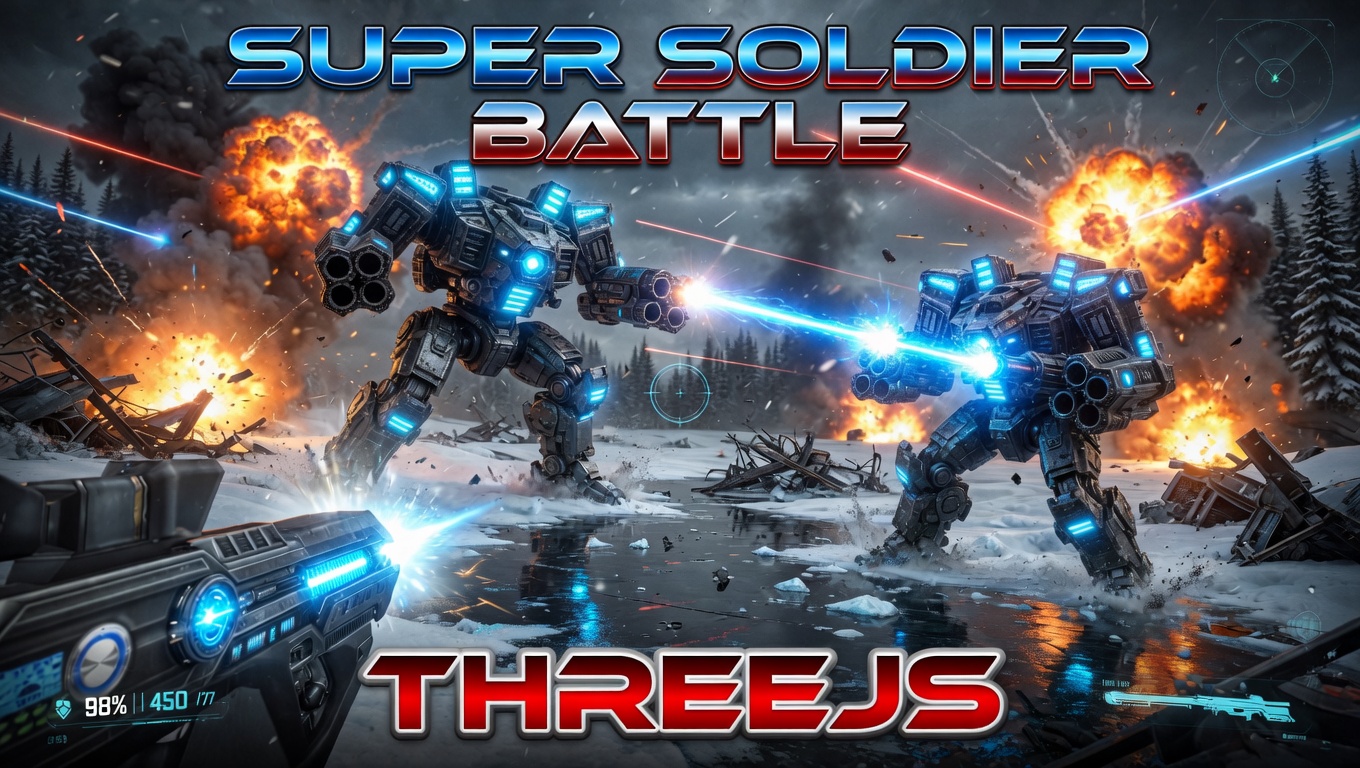
Super Soldier Battle
A free multiplayer 3D FPS that runs right in your browser — built with Three.js and WebGL.

AI Tic-Tac-Toe
Play tic-tac-toe against an unbeatable AI opponent. Free, no download, plays in the browser.
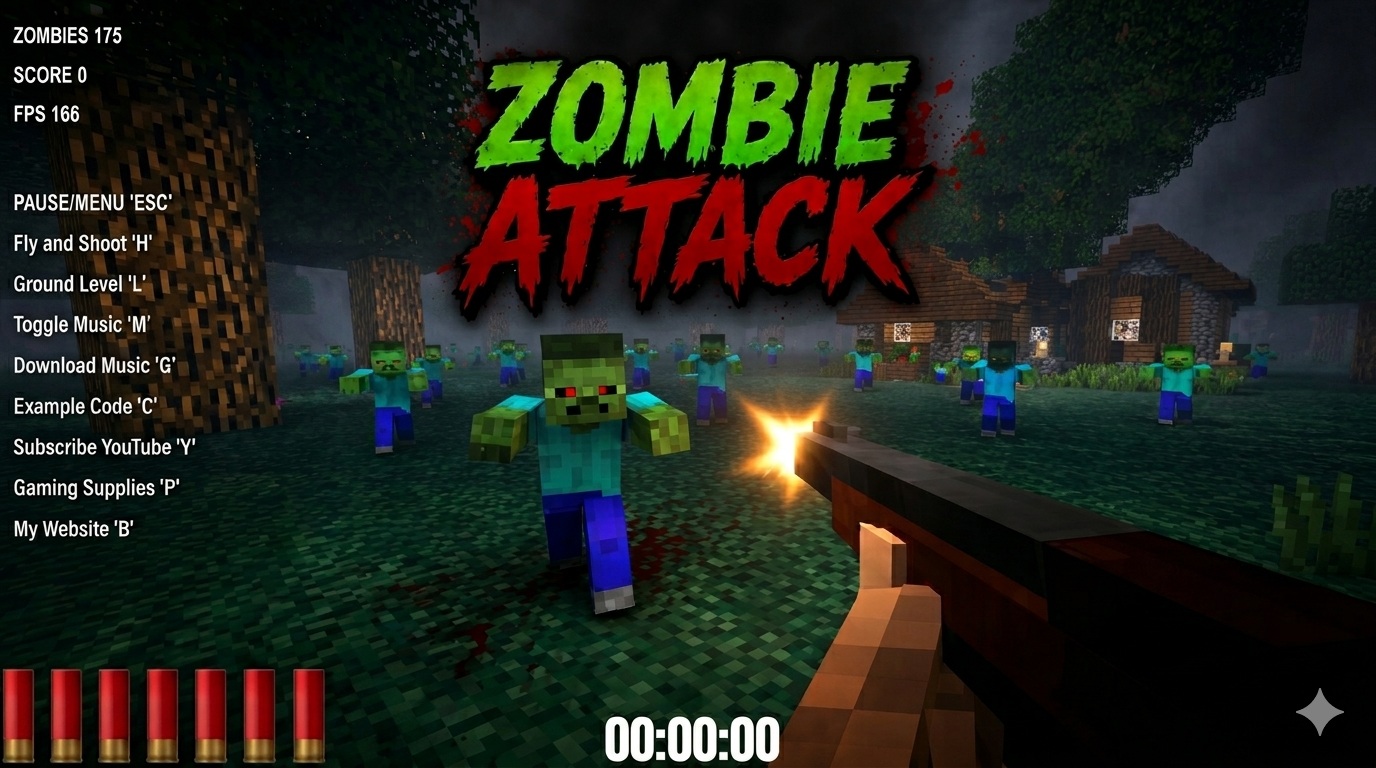
Zombie Attack
Survive waves of zombies in this free 3D browser shooter built with Three.js. No download, plays instantly.
Play now →
Space Wow
Blast through space in this free 3D Three.js arcade shooter. Free, no download, plays right in your browser.
Play now →