THREE.JS SOLAR SYSTEM
BEGINNER CLASSROOM
By Shane Brumback · Published · Beginner Three.js tutorial · about 45 minutes
Part 1 of the series: build a solar system classroom where students sign in, fly between animated planets and hover any planet to discover its facts. Ready for more? The Advanced tutorial turns it into a full educational 3D game. It is the worked example from my article on creating 3D virtual educational worlds.
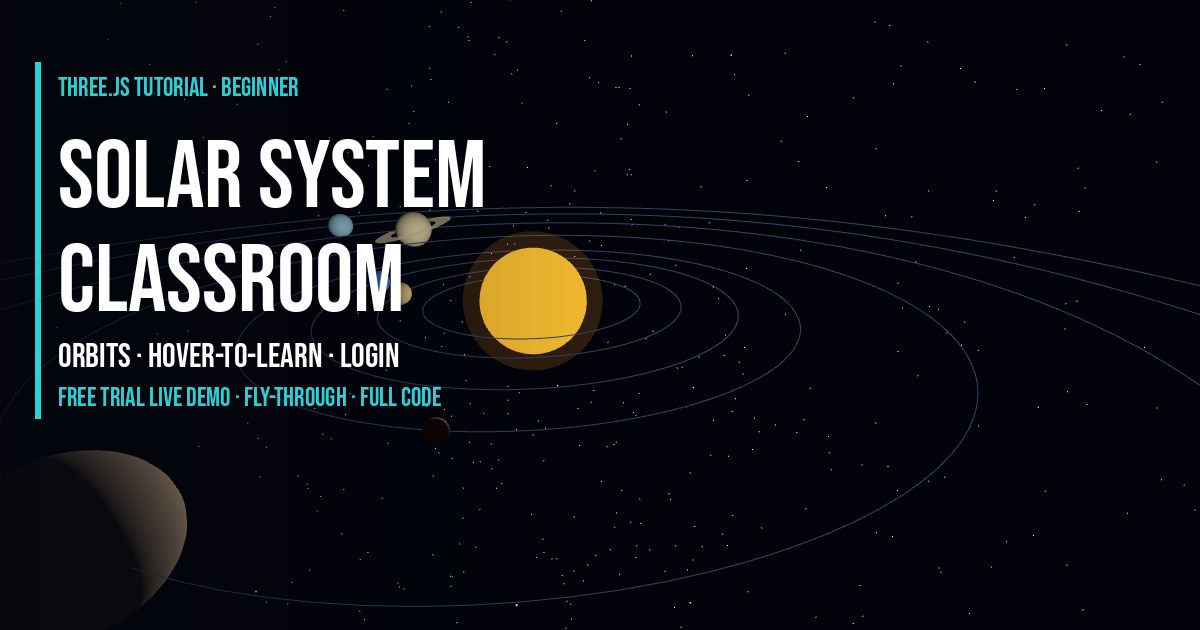
LIVE DEMO
The solar system behind this page is the demo. Sign in free to launch it full screen, fly with WASD and hover any planet to read its facts. Every signed-in visitor gets a 3-minute free trial; members get unlimited time. Flip the switch to preview the Advanced spaceship mode.
Beginner (default on this page): the scene this tutorial builds. Advanced: the full educational game — discovery by proximity and aim, learning panels with planet images, progress and a bonus comet.
▶ Play the GameMove: W A S D · Up / down: E / Q · Boost: Shift · Phones: left stick pitch + yaw, right stick throttle, BOOST above it · Esc to exit
The Solar System Series
- Article: Creating 3D Virtual Educational Worlds — the design ideas.
- Beginner tutorial — orbits, WASD fly-through, hover-to-learn and a classroom login.
- Advanced tutorial — build a full educational 3D game: discovery, learning panels, progress, VFX and mobile controls.
- Play Planet Quest: Solar System Explorer — the finished game.
How to Build a Solar System in Three.js (Quick Answer)
Make a sphere for the Sun with a PointLight at its center, then put each planet mesh inside an empty Object3D pivot and rotate the pivots at different speeds to animate the orbits. Store each planet's facts in mesh.userData, use a Raycaster from the mouse to detect which planet is hovered, and show those facts in an HTML card. Move the camera with keys to fly through it, and start the loop only after a login form is submitted.
Introduction
A diagram of the solar system tells students the planet order. A 3D solar system lets them feel it: how small Mercury is next to Jupiter, how slowly Neptune crawls while Mercury races around the Sun, and how much empty space there is between worlds. That is the difference between a render and an educational world.
In plain words: we build a little space classroom. A student signs in, the planets start orbiting, they fly around like a spaceship and point at any planet to read about it. A counter tracks how many worlds they have explored until the mission is complete.
This tutorial is the hands-on companion to Creating 3D Virtual Educational Worlds with Three.js, which explains the five systems every learning world needs. Here we build all five. The tutorial and full code are free.
Frequently Asked Questions
How do I make planets orbit the Sun in Three.js?
Put each planet mesh inside an empty Object3D pivot at the center of the scene, offset the mesh by its orbit distance, and rotate the pivot a little every frame. The pivot carries the planet around the Sun. Give each pivot its own speed so inner planets move faster.
How do I show information when the mouse hovers over a planet?
Store the facts on each mesh in userData, convert the mouse position to normalized device coordinates, call raycaster.setFromCamera(pointer, camera) and intersectObjects on your planets every frame. When the first hit changes, fill an HTML info card with that object's userData and move the card next to the cursor.
How do I let students fly through the solar system?
Track WASD or arrow keys, build a direction vector, rotate it by camera.quaternion and add it to the camera position each frame. Smoothing the velocity with lerp makes it feel like a spaceship. In this tutorial the orbit target moves with the camera so drag-to-look still works.
How do I add a login to a Three.js educational game?
Show a login form over the canvas and only start the animation loop after it is submitted. The free code uses a simple classroom name and class code saved in localStorage, which is fine for prototypes. For real student accounts use a proper auth provider and store progress on a server.
Is the solar system to scale?
No. Sizes and distances are scaled so every planet is visible and reachable in a few seconds of flight. True scale would put Neptune thousands of Earth widths away, which makes a great classroom discussion.
Is this tutorial free?
Yes. The tutorial and the full code are free. The full-screen live demo needs a free Google sign-in and includes a 3-minute free trial; members get unlimited demo time.
What Students Learn
- The order and relative sizes of the eight planets.
- That inner planets orbit faster than outer ones — seen, not memorized.
- Key facts per planet: type, day length, year length, moons and one memorable fact.
- How vast and empty space is, something a flat diagram cannot show.
The scene teaches through discovery. Nothing lectures the student: they choose where to fly and curiosity unlocks the content. Tell students sizes and distances are scaled for readability, then ask how far away Neptune would really be. Moon counts change as new moons are confirmed, so have students check NASA's current planet pages too.
The Five Systems in This Scene
| System | Solar system implementation |
|---|---|
| World | Sun, planet spheres, orbit lines, starfield |
| Player | Keyboard flight plus drag-to-look and zoom |
| Interactive objects | Planets carrying their facts in userData, found by a Raycaster |
| Learning UI | Hover info card and an explored counter |
| Identity and progress | Classroom login and saved progress |
How It Works
- Set up the renderer, scene and camera — In plain words: We make the 3D window and a camera far enough back to see the whole solar system. Pixel ratio is capped so it stays smooth on school laptops and phones.
- Keep the learning content in data — In plain words: Every planet is one plain object: size, distance, orbit speed and the facts students will discover. Teachers can edit facts here without touching any 3D code.
- Add the Sun, light and a starfield — In plain words: The Sun is a glowing sphere with a point light at its center, so the sides of every planet facing the Sun are lit. Thousands of random points make the stars.
- Put each planet on an orbit pivot — In plain words: Each planet sits inside an empty pivot at the Sun. Rotating the pivot carries the planet around its orbit. We also draw a faint orbit line and give Saturn its rings. The facts go on mesh.userData so the raycaster can find them.
- Fly through space — In plain words: WASD or arrows move, Q and E go down and up, Shift boosts. The move direction is turned by the camera rotation so W always flies where you look, and the orbit target moves too so dragging still looks around.
- Hover a planet to learn about it — In plain words: A raycaster shoots a line from the camera through the mouse. When it hits a planet, we enlarge it a little, fill the info card with that planet's facts and count it as explored.
- Animate everything in one loop — In plain words: Every frame each pivot turns by its speed, planets spin, and while you are flying the controls, hover and camera update. Delta time is capped so a slow frame never makes planets jump.
- Gate the world behind a classroom login — In plain words: In the free full code, students type a name and class code before the universe starts. Their explored planets are saved in localStorage so progress survives a refresh. This is prototype auth for classrooms, not real security; for graded work use a real auth provider and save progress on a server.
Code Breakdown
Steps 1 to 7 are the exact Beginner-mode code running behind this page (solar-scene-beginner.js). Step 8 is the classroom login from the full code below.
1. Set up the renderer, scene and camera
In plain words: We make the 3D window and a camera far enough back to see the whole solar system. Pixel ratio is capped so it stays smooth on school laptops and phones.
// ---------- 1. Renderer, scene, camera ----------
const isMobile = Math.min(innerWidth, innerHeight) < 600 || matchMedia('(pointer: coarse)').matches;
const renderer = new THREE.WebGLRenderer({ antialias: !isMobile, alpha: false });
renderer.setPixelRatio(Math.min(devicePixelRatio, isMobile ? 1.5 : 2));
renderer.setSize(innerWidth, innerHeight);
renderer.domElement.id = 'renderer';
if ((window.__solarMode || 'beginner') !== 'beginner') renderer.domElement.style.display = 'none';
document.body.appendChild(renderer.domElement);

const scene = new THREE.Scene();
scene.background = new THREE.Color(0x02030a);
const camera = new THREE.PerspectiveCamera(60, innerWidth / innerHeight, 0.1, 3000);
camera.position.set(0, 28, 78);
const controls = new OrbitControls(camera, renderer.domElement);
controls.enableDamping = true;
controls.autoRotate = true;
controls.autoRotateSpeed = 0.35;
controls.maxDistance = 260;
controls.enabled = !window.__PAGE_MODE;
2. Keep the learning content in data
In plain words: Every planet is one plain object: size, distance, orbit speed and the facts students will discover. Teachers can edit facts here without touching any 3D code.
// ---------- 2. Learning content: one object per body ----------
const PLANETS = [
  { name: 'Mercury', color: 0xb1aaa0, radius: 0.4, distance: 8, speed: 4.15, type: 'Rocky planet', day: '59 Earth days', year: '88 Earth days', moons: '0', fact: 'The smallest planet and the closest to the Sun.' },
  { name: 'Venus', color: 0xe6c27a, radius: 0.9, distance: 11, speed: 1.62, type: 'Rocky planet', day: '243 Earth days', year: '225 Earth days', moons: '0', fact: 'The hottest planet: its thick carbon dioxide atmosphere traps heat.' },
  { name: 'Earth', color: 0x3a7bd5, radius: 1.0, distance: 15, speed: 1.0, type: 'Rocky planet', day: '24 hours', year: '365 days', moons: '1', fact: 'The only known planet with liquid surface water and life.' },
  { name: 'Mars', color: 0xc1440e, radius: 0.55, distance: 19, speed: 0.53, type: 'Rocky planet', day: '24.6 hours', year: '687 Earth days', moons: '2', fact: 'Home to Olympus Mons, the tallest volcano in the solar system.' },
  { name: 'Jupiter', color: 0xd8b48a, radius: 2.8, distance: 28, speed: 0.084, type: 'Gas giant', day: 'about 10 hours', year: 'about 12 Earth years', moons: '95+', fact: 'The largest planet; the Great Red Spot is a giant storm.' },
  { name: 'Saturn', color: 0xe3d3a3, radius: 2.3, distance: 38, speed: 0.034, type: 'Gas giant', ring: true, day: 'about 10.7 hours', year: 'about 29 Earth years', moons: '140+', fact: 'Its rings are made mostly of ice and rock.' },
  { name: 'Uranus', color: 0x9fd9e8, radius: 1.6, distance: 47, speed: 0.012, type: 'Ice giant', day: 'about 17 hours', year: 'about 84 Earth years', moons: '27', fact: 'It rotates on its side, tilted about 98 degrees.' },
  { name: 'Neptune', color: 0x3f5ccf, radius: 1.55, distance: 55, speed: 0.006, type: 'Ice giant', day: 'about 16 hours', year: 'about 165 Earth years', moons: '16', fact: 'It has the fastest winds measured in the solar system.' }
];
3. Add the Sun, light and a starfield
In plain words: The Sun is a glowing sphere with a point light at its center, so the sides of every planet facing the Sun are lit. Thousands of random points make the stars.
// ---------- 3. Sun, light, stars ----------
const sun = new THREE.Mesh(new THREE.SphereGeometry(4, 48, 48), new THREE.MeshBasicMaterial({ color: 0xffcc33 }));
sun.userData = { name: 'The Sun', type: 'Star (G-type)', fact: 'It holds about 99.8 percent of the mass of the whole solar system.' };
scene.add(sun);
const glow = new THREE.Mesh(new THREE.SphereGeometry(5.2, 32, 32), new THREE.MeshBasicMaterial({ color: 0xff9922, transparent: true, opacity: 0.18, depthWrite: false }));
scene.add(glow);
scene.add(new THREE.PointLight(0xffffff, 3, 0, 0));
scene.add(new THREE.AmbientLight(0x333344));

const starCount = isMobile ? 1500 : 3000;
const starPos = new Float32Array(starCount * 3);
for (let i = 0; i < starPos.length; i++) starPos[i] = (Math.random() - 0.5) * 1500;
const starGeo = new THREE.BufferGeometry();
starGeo.setAttribute('position', new THREE.BufferAttribute(starPos, 3));
scene.add(new THREE.Points(starGeo, new THREE.PointsMaterial({ color: 0xffffff, size: 0.8 })));
4. Put each planet on an orbit pivot
In plain words: Each planet sits inside an empty pivot at the Sun. Rotating the pivot carries the planet around its orbit. We also draw a faint orbit line and give Saturn its rings. The facts go on mesh.userData so the raycaster can find them.
// ---------- 4. Planets on orbit pivots ----------
const pivots = [];
const hoverables = [sun];
for (const p of PLANETS) {
  const pivot = new THREE.Object3D();
  pivot.rotation.y = Math.random() * Math.PI * 2;
  scene.add(pivot);
  const mesh = new THREE.Mesh(new THREE.SphereGeometry(p.radius, 32, 32), new THREE.MeshStandardMaterial({ color: p.color, roughness: 0.9 }));
  mesh.position.x = p.distance;
  mesh.userData = p;
  pivot.add(mesh);
  hoverables.push(mesh);
  if (p.ring) {
    const ring = new THREE.Mesh(new THREE.RingGeometry(p.radius * 1.3, p.radius * 2.2, 64),
      new THREE.MeshBasicMaterial({ color: 0xcdbb8a, side: THREE.DoubleSide, transparent: true, opacity: 0.7 }));
    ring.rotation.x = -Math.PI / 2.4;
    mesh.add(ring);
  }
  const pts = new THREE.EllipseCurve(0, 0, p.distance, p.distance).getPoints(128).map(v => new THREE.Vector3(v.x, 0, v.y));
  scene.add(new THREE.LineLoop(new THREE.BufferGeometry().setFromPoints(pts), new THREE.LineBasicMaterial({ color: 0x5f82bb })));
  pivots.push({ pivot, mesh, speed: p.speed });
}
5. Fly through space
In plain words: WASD or arrows move, Q and E go down and up, Shift boosts. The move direction is turned by the camera rotation so W always flies where you look, and the orbit target moves too so dragging still looks around.
// ---------- 5. Fly controls: WASD / arrows, Q/E up-down, Shift boost ----------
const keys = {};
addEventListener('keydown', e => { keys[e.code] = true; });
addEventListener('keyup', e => { keys[e.code] = false; });
const velocity = new THREE.Vector3();
const dir = new THREE.Vector3();
const touchIn = window.__solarTouch || (window.__solarTouch = { yaw: 0, pitch: 0, throttle: 0, boost: false });   // mobile joystick + buttons
function updateFlight(dt) {
  const speed = keys.ShiftLeft || keys.ShiftRight || touchIn.boost ? 60 : 20;
  dir.set(
    ((keys.KeyD || keys.ArrowRight) ? 1 : 0) - ((keys.KeyA || keys.ArrowLeft) ? 1 : 0) + touchIn.yaw,
    (keys.KeyE ? 1 : 0) - (keys.KeyQ ? 1 : 0) - touchIn.pitch,
    ((keys.KeyS || keys.ArrowDown) ? 1 : 0) - ((keys.KeyW || keys.ArrowUp) ? 1 : 0) - touchIn.throttle
  );
  if (dir.lengthSq() > 0) dir.normalize().multiplyScalar(speed);
  velocity.lerp(dir, 1 - Math.exp(-4 * dt));
  const move = velocity.clone().multiplyScalar(dt).applyQuaternion(camera.quaternion);
  camera.position.add(move);
  controls.target.add(move); // fly the orbit pivot with the camera
}
6. Hover a planet to learn about it
In plain words: A raycaster shoots a line from the camera through the mouse. When it hits a planet, we enlarge it a little, fill the info card with that planet's facts and count it as explored.
// ---------- 6. Hover a planet to learn about it ----------
const raycaster = new THREE.Raycaster();
const pointer = new THREE.Vector2(9, 9);
let mouseX = 0, mouseY = 0, hovered = null;
const visited = new Set();
addEventListener('pointermove', e => {
  mouseX = e.clientX; mouseY = e.clientY;
  pointer.set((e.clientX / innerWidth) * 2 - 1, -(e.clientY / innerHeight) * 2 + 1);
});
addEventListener('pointerdown', e => {
  mouseX = e.clientX; mouseY = e.clientY;
  pointer.set((e.clientX / innerWidth) * 2 - 1, -(e.clientY / innerHeight) * 2 + 1);
});
function updateHover() {
  const info = document.getElementById('planet-info');
  if (!info || !document.body.classList.contains('demo-active')) { if (info) info.style.display = 'none'; return; }
  raycaster.setFromCamera(pointer, camera);
  const hit = raycaster.intersectObjects(hoverables, false)[0];
  const obj = hit ? hit.object : null;
  if (obj !== hovered) {
    if (hovered) hovered.scale.setScalar(1);
    hovered = obj;
    if (obj) {
      obj.scale.setScalar(1.15);
      const d = obj.userData;
      info.innerHTML = '<h3>' + d.name + '</h3><div><b>Type:</b> ' + d.type + '</div>' +
        (d.day ? '<div><b>Day:</b> ' + d.day + '</div><div><b>Year:</b> ' + d.year + '</div><div><b>Moons:</b> ' + d.moons + '</div>' : '') +
        '<p>' + d.fact + '</p>';
      info.style.display = 'block';
      visited.add(d.name);
      const hud = document.getElementById('solar-hud');
      if (hud) hud.textContent = 'Explored ' + visited.size + ' / ' + hoverables.length + (visited.size === hoverables.length ? ' - Mission complete!' : '');
    } else {
      info.style.display = 'none';
    }
  }
  if (obj) {
    info.style.left = Math.min(mouseX + 16, innerWidth - 280) + 'px';
    info.style.top = Math.min(mouseY + 16, innerHeight - 200) + 'px';
  }
}
7. Animate everything in one loop
In plain words: Every frame each pivot turns by its speed, planets spin, and while you are flying the controls, hover and camera update. Delta time is capped so a slow frame never makes planets jump.
// ---------- 7. Animate ----------
const clock = new THREE.Clock();
renderer.setAnimationLoop(() => {
  if ((window.__solarMode || 'beginner') !== 'beginner') { clock.getDelta(); return; }   // paused while the other mode is shown
  const dt = Math.min(clock.getDelta(), 0.05);
  for (const { pivot, mesh, speed } of pivots) {
    pivot.rotation.y += speed * 0.3 * dt;
    mesh.rotation.y += 0.5 * dt;
  }
  sun.rotation.y += 0.05 * dt;
  const live = document.body.classList.contains('demo-active');
  controls.autoRotate = !live;
  if (live) updateFlight(dt);
  updateHover();
  controls.update();
  renderer.render(scene, camera);
});
addEventListener('resize', () => {
  camera.aspect = innerWidth / innerHeight;
  camera.updateProjectionMatrix();
  renderer.setSize(innerWidth, innerHeight);
});
window.__scenes = window.__scenes || {};
window.__scenes['beginner'] = { renderer, controls, camera };
if ((window.__solarMode || 'beginner') === 'beginner') window.__scene = window.__scenes['beginner'];
8. Gate the world behind a classroom login
In plain words: In the free full code, students type a name and class code before the universe starts. Their explored planets are saved in localStorage so progress survives a refresh. This is prototype auth for classrooms, not real security; for graded work use a real auth provider and save progress on a server.
let student = null;
const hud = document.getElementById('hud');
function updateHUD() {
if (!student) return;
hud.textContent = `👩🚀 ${student.name} · ${student.classCode} · Explored ${visited.size}/${hoverables.length} bodies`;
localStorage.setItem(`solar-progress-${student.name}`, JSON.stringify([...visited]));
if (visited.size === hoverables.length) hud.textContent += ' · 🏆 Mission complete!';
}
document.getElementById('login-form').addEventListener('submit', e => {
e.preventDefault();
student = {
name: document.getElementById('student-name').value.trim(),
classCode: document.getElementById('class-code').value.trim().toUpperCase(),
};
JSON.parse(localStorage.getItem(`solar-progress-${student.name}`) || '[]').forEach(n => visited.add(n));
document.getElementById('login').remove();
updateHUD();
animate(); // the world only starts after login
});The Full Code
Save as index.html and open it through any local web server (for example npx serve .), or hit Launch. Three.js r160 loads from a CDN, so there are no files to download. Sign in with any name and a class code, click the scene to fly with the mouse, and aim the crosshair at a planet.
<!DOCTYPE html>
<html lang="en">
<head>
<meta charset="UTF-8" />
<title>Solar System Classroom - Three.js Educational Game Scene</title>
<style>
body { margin: 0; overflow: hidden; background: #000; font-family: system-ui, sans-serif; color: #fff; }
#login { position: fixed; inset: 0; display: flex; align-items: center; justify-content: center;
background: radial-gradient(#112, #000); z-index: 10; }
#login form { background: #1b1f3a; padding: 2rem; border-radius: 12px; display: grid; gap: .75rem; width: 280px; }
#login input, #login button { padding: .6rem; border-radius: 6px; border: none; font-size: 1rem; }
#login button { background: #4f7cff; color: #fff; cursor: pointer; }
#info { position: fixed; pointer-events: none; display: none; max-width: 260px;
background: rgba(15,20,45,.92); border: 1px solid #4f7cff; border-radius: 10px; padding: .8rem 1rem; font-size: .9rem; }
#info h3 { margin: 0 0 .4rem; }
#hud { position: fixed; top: 10px; left: 10px; font-size: .85rem; opacity: .85; }
#crosshair { position: fixed; top: 50%; left: 50%; width: 6px; height: 6px; margin: -3px; border-radius: 50%; background: #fff; display: none; }
</style>
</head>
<body>
<div id="login">
<form id="login-form">
<h2>🚀 Mission Control</h2>
<input id="student-name" placeholder="Student name" required />
<input id="class-code" placeholder="Class code (e.g. SPACE101)" required />
<button type="submit">Launch</button>
</form>
</div>
<div id="hud"></div>
<div id="crosshair"></div>
<div id="info"></div>
<script type="importmap">
{ "imports": {
"three": "https://unpkg.com/three@0.160.0/build/three.module.js",
"three/addons/": "https://unpkg.com/three@0.160.0/examples/jsm/"
} }
</script>
<script type="module">
import * as THREE from 'three';
import { PointerLockControls } from 'three/addons/controls/PointerLockControls.js';
// planets.js — scaled values for readability, not true scale
const PLANETS = [
{ name: 'Mercury', color: 0xb1aaa0, radius: 0.4, distance: 8, speed: 4.15, type: 'Rocky',
day: '59 Earth days', year: '88 Earth days', moons: 0, fact: 'Smallest planet and closest to the Sun.' },
{ name: 'Venus', color: 0xe6c27a, radius: 0.9, distance: 11, speed: 1.62, type: 'Rocky',
day: '243 Earth days', year: '225 Earth days', moons: 0, fact: 'Hottest planet — its thick CO₂ atmosphere traps heat.' },
{ name: 'Earth', color: 0x3a7bd5, radius: 1.0, distance: 15, speed: 1.0, type: 'Rocky',
day: '24 hours', year: '365 days', moons: 1, fact: 'The only known planet with liquid surface water and life.' },
{ name: 'Mars', color: 0xc1440e, radius: 0.55, distance: 19, speed: 0.53, type: 'Rocky',
day: '24.6 hours', year: '687 Earth days', moons: 2, fact: 'Home to Olympus Mons, the tallest volcano in the solar system.' },
{ name: 'Jupiter', color: 0xd8b48a, radius: 2.8, distance: 28, speed: 0.084, type: 'Gas giant',
day: '~10 hours', year: '~12 Earth years', moons: '95+', fact: 'Largest planet; its Great Red Spot is a giant storm.' },
{ name: 'Saturn', color: 0xe3d3a3, radius: 2.3, distance: 38, speed: 0.034, type: 'Gas giant', ring: true,
day: '~10.7 hours', year: '~29 Earth years', moons: '140+', fact: 'Its rings are made mostly of ice and rock.' },
{ name: 'Uranus', color: 0x9fd9e8, radius: 1.6, distance: 47, speed: 0.012, type: 'Ice giant',
day: '~17 hours', year: '~84 Earth years', moons: 27, fact: 'Rotates on its side, tilted about 98°.' },
{ name: 'Neptune', color: 0x3f5ccf, radius: 1.55, distance: 55, speed: 0.006, type: 'Ice giant',
day: '~16 hours', year: '~165 Earth years', moons: 16, fact: 'Has the fastest winds measured in the solar system.' },
];
const scene = new THREE.Scene();
const camera = new THREE.PerspectiveCamera(60, innerWidth / innerHeight, 0.1, 2000);
camera.position.set(0, 12, 70);
const renderer = new THREE.WebGLRenderer({ antialias: true });
renderer.setSize(innerWidth, innerHeight);
renderer.setPixelRatio(Math.min(devicePixelRatio, 2));
document.body.appendChild(renderer.domElement);
addEventListener('resize', () => {
camera.aspect = innerWidth / innerHeight;
camera.updateProjectionMatrix();
renderer.setSize(innerWidth, innerHeight);
});
// Sun + light
const sun = new THREE.Mesh(
new THREE.SphereGeometry(4, 48, 48),
new THREE.MeshBasicMaterial({ color: 0xffcc33 })
);
sun.userData = { name: 'Sun', type: 'Star (G-type)', fact: 'Contains about 99.8% of the solar system\'s mass.' };
scene.add(sun);
scene.add(new THREE.PointLight(0xffffff, 3, 0, 0));
scene.add(new THREE.AmbientLight(0x333344));
// Starfield
const starGeo = new THREE.BufferGeometry();
const starPos = new Float32Array(3000 * 3).map(() => (Math.random() - 0.5) * 1500);
starGeo.setAttribute('position', new THREE.BufferAttribute(starPos, 3));
scene.add(new THREE.Points(starGeo, new THREE.PointsMaterial({ color: 0xffffff, size: 0.8 })));
// Planets
const pivots = [];
const hoverables = [sun];
for (const p of PLANETS) {
const pivot = new THREE.Object3D();
pivot.rotation.y = Math.random() * Math.PI * 2; // random starting position
scene.add(pivot);
const mesh = new THREE.Mesh(
new THREE.SphereGeometry(p.radius, 32, 32),
new THREE.MeshStandardMaterial({ color: p.color, roughness: 0.9 })
);
mesh.position.x = p.distance;
mesh.userData = p; // attach learning content directly to the object
pivot.add(mesh);
hoverables.push(mesh);
if (p.ring) {
const ring = new THREE.Mesh(
new THREE.RingGeometry(p.radius * 1.3, p.radius * 2.2, 64),
new THREE.MeshBasicMaterial({ color: 0xcdbb8a, side: THREE.DoubleSide, transparent: true, opacity: 0.7 })
);
ring.rotation.x = -Math.PI / 2.4;
mesh.add(ring);
}
// Visible orbit line
const orbitPts = new THREE.EllipseCurve(0, 0, p.distance, p.distance).getPoints(128);
const orbit = new THREE.LineLoop(
new THREE.BufferGeometry().setFromPoints(orbitPts.map(v => new THREE.Vector3(v.x, 0, v.y))),
new THREE.LineBasicMaterial({ color: 0x334466 })
);
scene.add(orbit);
pivots.push({ pivot, mesh, speed: p.speed });
}
const controls = new PointerLockControls(camera, document.body);
const keys = {};
addEventListener('keydown', e => keys[e.code] = true);
addEventListener('keyup', e => keys[e.code] = false);
renderer.domElement.addEventListener('click', () => controls.lock());
controls.addEventListener('lock', () => document.getElementById('crosshair').style.display = 'block');
controls.addEventListener('unlock', () => document.getElementById('crosshair').style.display = 'none');
const velocity = new THREE.Vector3();
const dir = new THREE.Vector3();
function updateFlight(dt) {
const speed = keys.ShiftLeft ? 60 : 20; // hold Shift to boost
dir.set(
(keys.KeyD ? 1 : 0) - (keys.KeyA ? 1 : 0),
(keys.Space ? 1 : 0) - (keys.ControlLeft ? 1 : 0),
(keys.KeyS ? 1 : 0) - (keys.KeyW ? 1 : 0)
).normalize();
// smooth acceleration feels like a spaceship
velocity.lerp(dir.multiplyScalar(speed), 1 - Math.exp(-4 * dt));
const move = velocity.clone().multiplyScalar(dt).applyQuaternion(camera.quaternion);
camera.position.add(move);
}
const raycaster = new THREE.Raycaster();
const pointer = new THREE.Vector2(9, 9); // offscreen until moved
const info = document.getElementById('info');
let mouseX = 0, mouseY = 0, hovered = null;
const visited = new Set();
addEventListener('pointermove', e => {
mouseX = e.clientX; mouseY = e.clientY;
pointer.set((e.clientX / innerWidth) * 2 - 1, -(e.clientY / innerHeight) * 2 + 1);
});
function updateHover() {
raycaster.setFromCamera(controls.isLocked ? new THREE.Vector2(0, 0) : pointer, camera);
const hit = raycaster.intersectObjects(hoverables, false)[0];
const obj = hit ? hit.object : null;
if (obj !== hovered) {
if (hovered) hovered.scale.setScalar(1);
hovered = obj;
if (obj) {
obj.scale.setScalar(1.15); // visual feedback
const d = obj.userData;
info.innerHTML = `<h3>${d.name}</h3>
<div><b>Type:</b> ${d.type}</div>
${d.day ? `<div><b>Day:</b> ${d.day}</div><div><b>Year:</b> ${d.year}</div><div><b>Moons:</b> ${d.moons}</div>` : ''}
<p>${d.fact}</p>`;
info.style.display = 'block';
visited.add(d.name);
updateHUD();
} else {
info.style.display = 'none';
}
}
if (obj) {
const x = controls.isLocked ? innerWidth / 2 + 20 : mouseX + 16;
const y = controls.isLocked ? innerHeight / 2 + 20 : mouseY + 16;
info.style.left = x + 'px'; info.style.top = y + 'px';
}
}
let student = null;
const hud = document.getElementById('hud');
function updateHUD() {
if (!student) return;
hud.textContent = `👩🚀 ${student.name} · ${student.classCode} · Explored ${visited.size}/${hoverables.length} bodies`;
localStorage.setItem(`solar-progress-${student.name}`, JSON.stringify([...visited]));
if (visited.size === hoverables.length) hud.textContent += ' · 🏆 Mission complete!';
}
document.getElementById('login-form').addEventListener('submit', e => {
e.preventDefault();
student = {
name: document.getElementById('student-name').value.trim(),
classCode: document.getElementById('class-code').value.trim().toUpperCase(),
};
JSON.parse(localStorage.getItem(`solar-progress-${student.name}`) || '[]').forEach(n => visited.add(n));
document.getElementById('login').remove();
updateHUD();
animate(); // the world only starts after login
});
const clock = new THREE.Clock();
function animate() {
requestAnimationFrame(animate);
const dt = Math.min(clock.getDelta(), 0.05);
const t = 0.3; // global time scale — let students speed up/slow down
for (const { pivot, mesh, speed } of pivots) {
pivot.rotation.y += speed * t * dt; // orbit
mesh.rotation.y += 0.5 * dt; // spin
}
sun.rotation.y += 0.05 * dt;
if (controls.isLocked) updateFlight(dt);
updateHover();
renderer.render(scene, camera);
}
</script>
</body>
</html>
Taking It Further
- Quiz mode: "Fly to the planet with the shortest year" and check the hovered planet on click.
- Time slider: bind the orbit time scale to a range input so students control time.
- Real textures: swap the colors for planet maps with TextureLoader, like in the transparent PNG textures tutorial.
- Moons: nest a moon pivot inside Earth's mesh — the same pivot trick one level deeper.
- Teacher dashboard: with real auth, send explored planets to a backend to see class progress.
- Read the design side in Creating 3D Virtual Educational Worlds with Three.js.