HOW TO DESIGN
3D GAMES WITH
WEB TECHNOLOGY
Book 01 of Jordi Josa's The Five Planets collection teaches Three.js, HTML5 and WebGL by building a first-person role-playing game, from a first animated scene to textures, lighting, shadows, imported models and camera controls. Get it on Amazon.
Book by Jordi Josa · Updated November 3, 2026 · Book guide · about 6 minute read
LIVE DEMO
The book on the right of this page is a live Three.js scene with its real cover as a texture. Launch it full screen to drag to turn it and scroll to zoom. Launch asks for a free Google sign-in first. Press Esc or Exit to return.
Free Google sign-in · Orbit: drag · Zoom: scroll · Esc to exit
About This Book

Web browsers grew from simple page viewers into platforms that can run full 3D games, with offline storage, native audio, speech, hardware-accelerated WebGL, motion detection and virtual reality. Jordi Josa started The Five Planets collection to explore those technologies one book at a time.
Instead of isolated snippets, the series builds a first-person role-playing game, using it as the reason to introduce each web technology. Book 01 covers Three.js, HTML5 and WebGL and ends with the game's first location.
Buy on Amazon →As an Amazon Associate I earn from qualifying purchases, at no extra cost to you.
Who This Book Is For
Anyone with basic JavaScript and HTML who wants to add 3D animation to web pages or try game design. No advanced mathematics or WebGL knowledge is needed; everything is explained in a simple way.
What You Will Learn
- Using Three.js to create and animate a basic scene
- Preparing the development environment and fixing common problems
- Geometries and materials from the core library
- Advanced textures and transparency
- Lighting the scene and casting shadows
- Loading models made in other tools and animating them
- Camera control with keyboard, mouse and even body movement
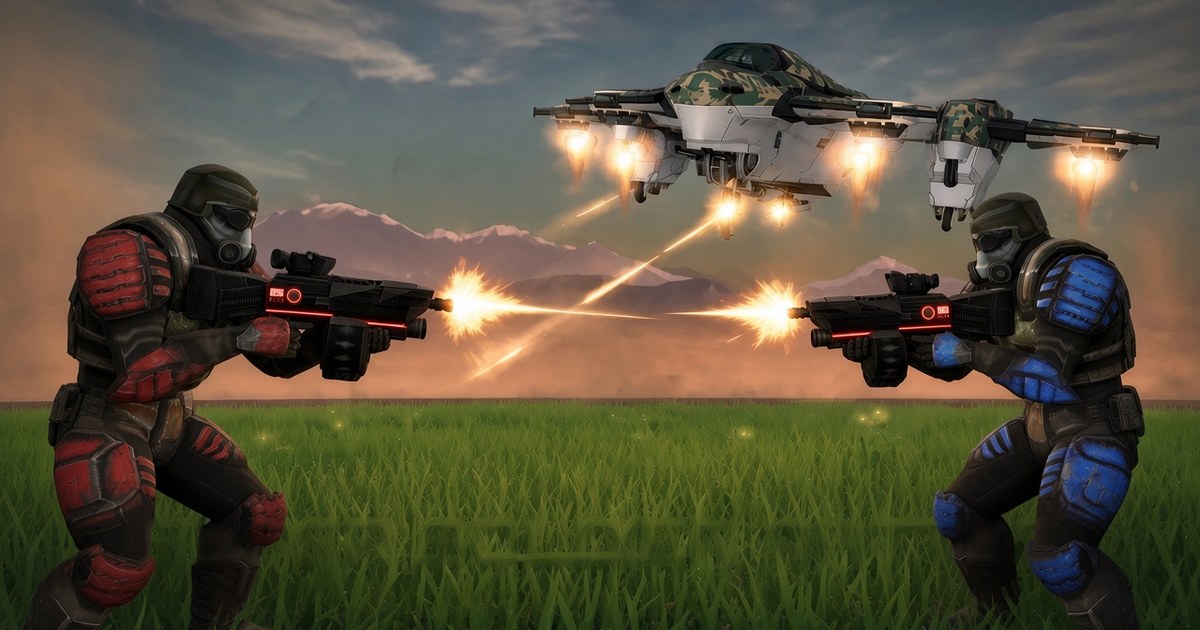
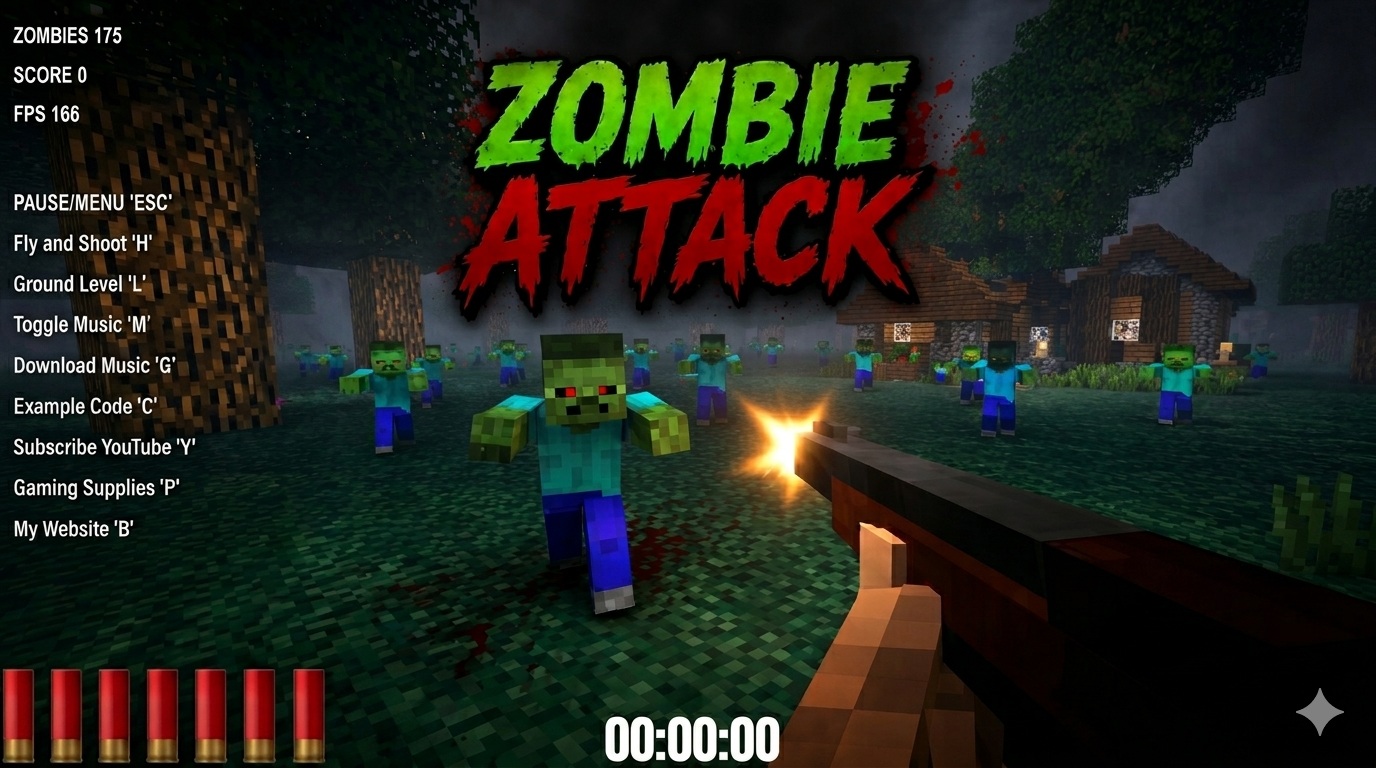
- Building the first game location: a medieval village with a castle, cemetery, villagers and a monster-filled forest
What You'll Build

Try Before You Buy
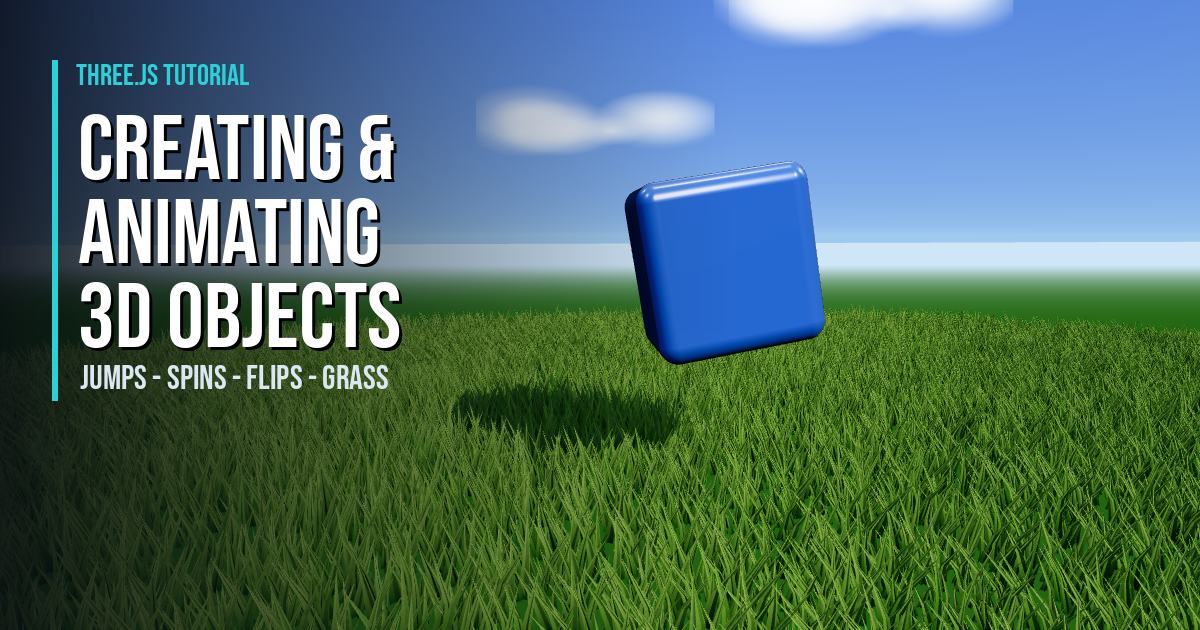
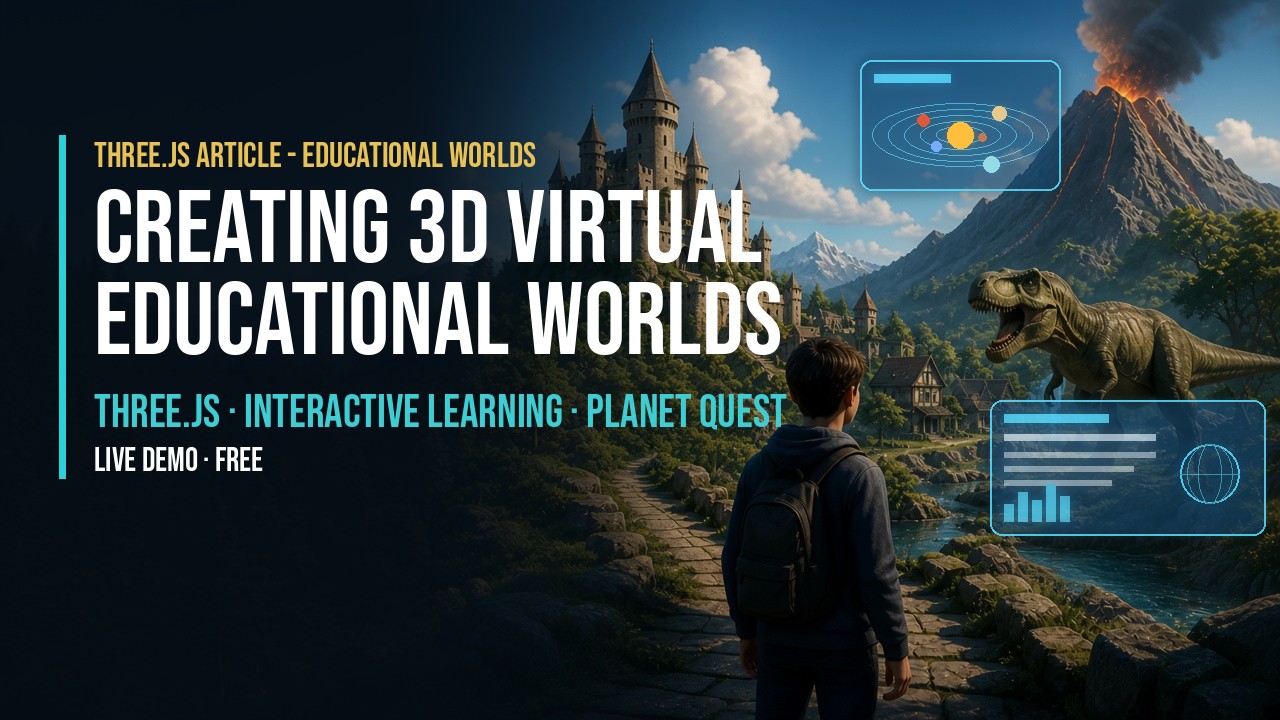
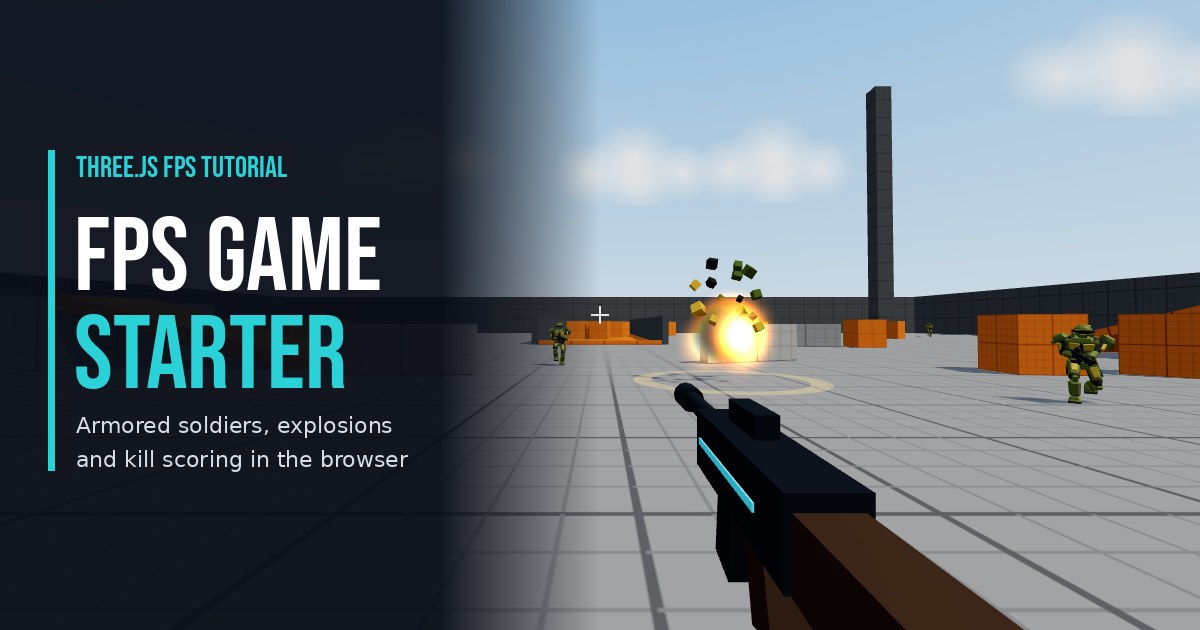
Want a taste of the style first? These free tutorials cover the same building blocks: creating and animating simple 3D objects, the first-person game starter and animating GLTF models.
More Three.js Programming Books

Game Development with Three.js
Isaac Sukin's guide to browser 3D games with physics, particles and FPS mechanics.

Learn Three.js Programming
Create stunning 3D animations and visualizations using JavaScript and Three.js.

Three.js Cookbook
A comprehensive guide to creating 3D graphics and visualizations using Three.js.

Using WebXR API
Dive into immersive frame-based AR and VR development with WebXR.

Real-Time 3D Graphics with WebGL 2
Build interactive 3D applications with JavaScript and WebGL 2.

Learn Three.js: Programming 3D animations
Learn Three.js: Programming 3D animations and visualizations for the web.
Step-by-Step Code Breakdown
Bonus mini lesson: this is how the floating 3D book at the top of the page is built. Every excerpt is copied exactly from the full code below.
1. Scene, camera and renderer
In plain words: a dark scene, a camera a few steps in front of the book, and a renderer. Tone mapping keeps the bright cover colors from washing out under the lights.
const scene = new THREE.Scene();
scene.background = new THREE.Color(0x07090f);

const camera = new THREE.PerspectiveCamera(40, innerWidth / innerHeight, 0.1, 100);
camera.position.set(0, 0.3, 9);

const renderer = new THREE.WebGLRenderer({ antialias: true });
renderer.setPixelRatio(Math.min(devicePixelRatio, 2));
renderer.setSize(innerWidth, innerHeight);
renderer.toneMapping = THREE.ACESFilmicToneMapping;
renderer.outputColorSpace = THREE.SRGBColorSpace;
document.body.appendChild(renderer.domElement);
2. Light it like a product shot
In plain words: photographers light products with a soft key light from the front side and a colored rim light from behind that outlines the edges. We do the same with two directional lights plus a little ambient fill.
scene.add(new THREE.AmbientLight(0xffffff, 0.6));
const key = new THREE.DirectionalLight(0xffffff, 2.2);
key.position.set(3, 4, 6);
scene.add(key);
const rim = new THREE.DirectionalLight(0x2ad1d6, 3);
rim.position.set(-5, 2, -4);
scene.add(rim);
3. Load the cover as a texture
In plain words: TextureLoader downloads the cover picture and turns it into a texture the graphics card can paint onto 3D shapes. setCrossOrigin('anonymous') is needed because the image lives on another website. Setting the color space to sRGB keeps the colors true to the original picture.
const loader = new THREE.TextureLoader();
loader.setCrossOrigin('anonymous');
const coverTex = loader.load('https://m.media-amazon.com/images/I/91imvv-5W7L._SY466_.jpg');
coverTex.colorSpace = THREE.SRGBColorSpace;
coverTex.anisotropy = renderer.capabilities.getMaxAnisotropy();
4. Build the book from a box with six materials
In plain words: a book is just a thin box. BoxGeometry accepts an array of six materials, one per face, in this order: right, left, top, bottom, front, back. The front gets the cover, the left side becomes the colored spine, and the other edges get a cream paper color so it reads as pages.
const paper = new THREE.MeshStandardMaterial({ color: 0xf1ead8, roughness: 0.9 });
const spineMat = new THREE.MeshStandardMaterial({ color: 0x3a2618, roughness: 0.5 });
const front = new THREE.MeshStandardMaterial({ map: coverTex, roughness: 0.45 });
const back = new THREE.MeshStandardMaterial({ color: 0x3a2618, roughness: 0.6 });
const book = new THREE.Mesh(
  new THREE.BoxGeometry(3, 4.8, 0.5),
  [paper, spineMat, paper, paper, front, back]   // right, left, top, bottom, front, back
);
scene.add(book);
5. Float the book and add drifting sparks
In plain words: a few hundred tiny points drift around the book like dust in a sunbeam. In the loop the book sways side to side with Math.sin, so you see the cover, the spine and the page edges catch the light.
const sparkPos = new Float32Array(400 * 3);
for (let i = 0; i < sparkPos.length; i++) sparkPos[i] = (Math.random() - 0.5) * 14;
const sparkGeo = new THREE.BufferGeometry();
sparkGeo.setAttribute('position', new THREE.BufferAttribute(sparkPos, 3));
const sparks = new THREE.Points(sparkGeo, new THREE.PointsMaterial({ color: 0x2ad1d6, size: 0.05, transparent: true, opacity: 0.8 }));
scene.add(sparks);

const clock = new THREE.Clock();
function animate() {
  requestAnimationFrame(animate);
  const t = clock.getElapsedTime();
  book.rotation.y = Math.sin(t * 0.5) * 0.6;
  book.rotation.x = Math.sin(t * 0.3) * 0.08;
  book.position.y = Math.sin(t * 0.8) * 0.12;
  sparks.rotation.y = t * 0.03;
  controls.update();
  renderer.render(scene, camera);
}
animate();
Live Scene: The Full Code
Paste this into a file named index.html. It loads the cover image from Amazon, which allows cross-origin use, so it runs from anywhere. Launch Full Code opens this exact code as a standalone page in a new window.
<!DOCTYPE html>
<html lang="en">
<head>
  <meta charset="utf-8">
  <meta name="viewport" content="width=device-width, initial-scale=1">
  <title>Three.js 3D Book Cover Scene</title>
  <style>
    body { margin: 0; overflow: hidden; background: #000; font-family: system-ui, sans-serif; }
  </style>
  <script type="importmap">
  {
    "imports": {
      "three": "https://unpkg.com/three@0.160.0/build/three.module.js",
      "three/addons/": "https://unpkg.com/three@0.160.0/examples/jsm/"
    }
  }
  </script>
</head>
<body>
<script type="module">
import * as THREE from 'three';
import { OrbitControls } from 'three/addons/controls/OrbitControls.js';

// --- 1. Scene, camera and renderer ---
const scene = new THREE.Scene();
scene.background = new THREE.Color(0x07090f);

const camera = new THREE.PerspectiveCamera(40, innerWidth / innerHeight, 0.1, 100);
camera.position.set(0, 0.3, 9);

const renderer = new THREE.WebGLRenderer({ antialias: true });
renderer.setPixelRatio(Math.min(devicePixelRatio, 2));
renderer.setSize(innerWidth, innerHeight);
renderer.toneMapping = THREE.ACESFilmicToneMapping;
renderer.outputColorSpace = THREE.SRGBColorSpace;
document.body.appendChild(renderer.domElement);

// Orbit controls: drag (mouse or touch) to orbit. Zoom is off on the page so
// vertical swipes still scroll on phones; the full-screen demo turns zoom on.
const controls = new OrbitControls(camera, renderer.domElement);
controls.target.set(0, 0, 0);
controls.enableDamping = true;
controls.enableZoom = false;
controls.enablePan = false;
controls.autoRotate = false;
controls.autoRotateSpeed = 0;
renderer.domElement.style.touchAction = 'pan-y';

// --- 2. Light it like a product shot ---
scene.add(new THREE.AmbientLight(0xffffff, 0.6));
const key = new THREE.DirectionalLight(0xffffff, 2.2);
key.position.set(3, 4, 6);
scene.add(key);
const rim = new THREE.DirectionalLight(0x2ad1d6, 3);
rim.position.set(-5, 2, -4);
scene.add(rim);

// --- 3. Load the cover as a texture ---
const loader = new THREE.TextureLoader();
loader.setCrossOrigin('anonymous');
const coverTex = loader.load('https://m.media-amazon.com/images/I/91imvv-5W7L._SY466_.jpg');
coverTex.colorSpace = THREE.SRGBColorSpace;
coverTex.anisotropy = renderer.capabilities.getMaxAnisotropy();

// --- 4. Build the book from a box with six materials ---
const paper = new THREE.MeshStandardMaterial({ color: 0xf1ead8, roughness: 0.9 });
const spineMat = new THREE.MeshStandardMaterial({ color: 0x3a2618, roughness: 0.5 });
const front = new THREE.MeshStandardMaterial({ map: coverTex, roughness: 0.45 });
const back = new THREE.MeshStandardMaterial({ color: 0x3a2618, roughness: 0.6 });
const book = new THREE.Mesh(
  new THREE.BoxGeometry(3, 4.8, 0.5),
  [paper, spineMat, paper, paper, front, back]   // right, left, top, bottom, front, back
);
scene.add(book);

// --- 5. Float the book and add drifting sparks ---
const sparkPos = new Float32Array(400 * 3);
for (let i = 0; i < sparkPos.length; i++) sparkPos[i] = (Math.random() - 0.5) * 14;
const sparkGeo = new THREE.BufferGeometry();
sparkGeo.setAttribute('position', new THREE.BufferAttribute(sparkPos, 3));
const sparks = new THREE.Points(sparkGeo, new THREE.PointsMaterial({ color: 0x2ad1d6, size: 0.05, transparent: true, opacity: 0.8 }));
scene.add(sparks);

const clock = new THREE.Clock();
function animate() {
  requestAnimationFrame(animate);
  const t = clock.getElapsedTime();
  book.rotation.y = Math.sin(t * 0.5) * 0.6;
  book.rotation.x = Math.sin(t * 0.3) * 0.08;
  book.position.y = Math.sin(t * 0.8) * 0.12;
  sparks.rotation.y = t * 0.03;
  controls.update();
  renderer.render(scene, camera);
}
animate();

addEventListener('resize', () => {
  camera.aspect = innerWidth / innerHeight;
  camera.updateProjectionMatrix();
  renderer.setSize(innerWidth, innerHeight);
});
</script>
</body>
</html>
What To Try Next
- Swap in your own cover: change the URL in step 3 to any image on a server that allows cross-origin loading.
- Add a back cover: load a second texture and use it for the last material in the array instead of the plain color.
- Make it open: split the cover into its own thin box with its pivot on the spine and rotate it on click.
- Practice the book's first-person camera for free with the first-person game starter.
Frequently Asked Questions
What is How to Design 3D Games with Web Technology about?
It is Book 01 of Jordi Josa's The Five Planets collection. It teaches Three.js, HTML5 and WebGL by building the first location of a first-person role-playing game: a medieval village with a castle, a cemetery, villagers and a forest full of monsters.
Who wrote How to Design 3D Games with Web Technology?
Jordi Josa wrote it. It was independently published in February 2017 (ISBN 1520547455) as the first book of The Five Planets series.
What prior knowledge do I need?
Basic JavaScript and HTML. No advanced mathematics or WebGL experience is needed; the book explains everything step by step.
Is the book up to date with current Three.js?
It was written in 2017 for an older Three.js release, so some code needs updating, for example the old Geometry class is now BufferGeometry and addons load as ES modules. The concepts still apply, and the free tutorials on this site use the pinned Three.js 0.160.0.
Where can I buy How to Design 3D Games with Web Technology?
It is sold on Amazon as a Kindle ebook and a paperback. The Buy on Amazon button on this page links straight to it.
Can I read a Kindle book without a Kindle device?
Yes. The free Kindle app runs on phones, tablets and computers, and Kindle books can also be read in a web browser with Kindle Cloud Reader.
Is the 3D book scene code on this page free?
Yes. The live 3D book scene code is free to copy and Launch Full Code opens it in a new window. Only the full-screen live demo asks for a free Google sign-in.