HOW TO PROGRAM A
3D MENU IN THREE.JS
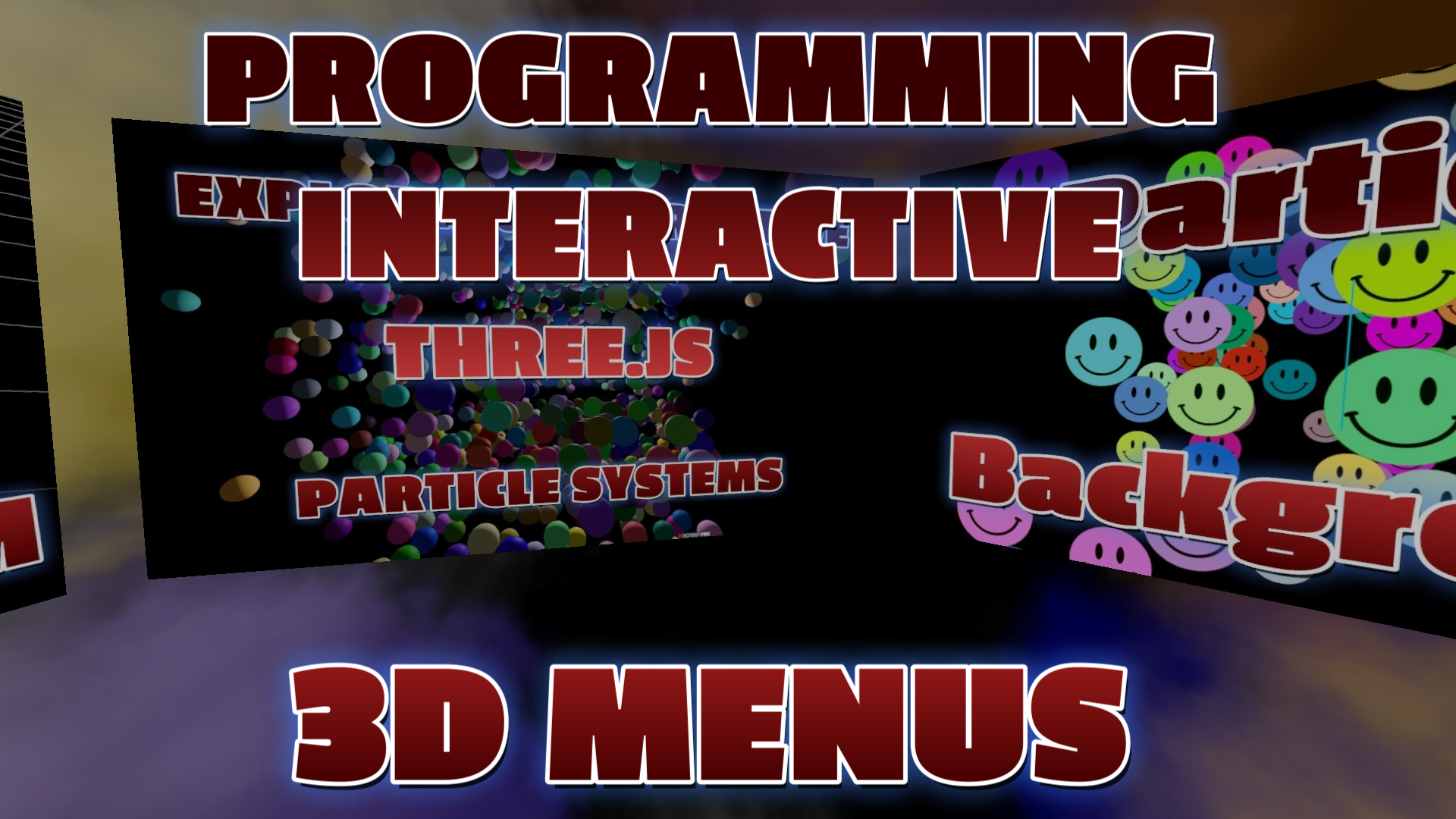
Using HTML, CSS, Three.js & JavaScript to build immersive interfaces.
Frequently Asked Questions
How do I create a 3D menu using Three.js?
Create 3D planes or boxes for each menu item, add text using CSS2DRenderer or texture-mapped text, position them in 3D space, then use Raycaster to detect mouse clicks on each item. Animate them with GSAP or Three.js built-in methods for transitions.
How do I detect clicks on 3D objects for menu interaction?
Use THREE.Raycaster with the mouse position to cast a ray into the scene. Check intersections with your menu objects: raycaster.intersectObjects(menuItems). The first intersection is the clicked item. Add event listeners for mousedown or pointerdown.
Can I add text labels to 3D menu items in Three.js?
Yes. Use CSS2DRenderer for crisp HTML text overlaid on 3D objects, or create text textures with CanvasTexture (draw text on a 2D canvas, apply as texture to a plane). CSS2DRenderer is simpler and always sharp; textures integrate better with 3D effects.
How do I animate 3D menu transitions in Three.js?
Use GSAP (gsap.to) or Tween.js to animate position, rotation, scale, and opacity of menu items. For hover effects, scale up on mouseenter and scale back on mouseleave. For page transitions, fly items off-screen with easing functions like power2.out.
Introduction
Integrating a 3D menu using Three.js into a website can transform the user experience by immersing visitors in a visually captivating and interactive interface. Unlike traditional flat menus, a 3D menu introduces depth, dimension, and a sense of exploration, instantly capturing users' attention and encouraging them to delve deeper into the website's offerings.
Realistic Graphics and Dynamic Animations
By harnessing the power of 3D graphics, the menu elements come to life with realistic textures, dynamic lighting, and captivating animations. The result is an interface that not only leaves a lasting impression but also entices users to spend more time on the website, eagerly exploring different menu options and discovering engaging content in an interactive and visually appealing manner.
Interactive Navigation
One of the key advantages of a 3D menu is its ability to provide intuitive and interactive navigation. Users can actively engage with the menu elements by hovering over or clicking on objects, triggering responsive actions and revealing additional information. This interactive nature of the menu enhances user engagement by providing a tactile and immersive interface, making the website feel dynamic and responsive to their actions.
Step-by-Step Programming Guide
Step 1: Define JSON Data
Create a variable named jsonData to store the menu's image and link data. Each entry should contain an "image" property with the image file path and a "link" property with the corresponding URL.
Step 2: Set Up the Scene and Camera
Create a Three.js scene and a perspective camera. Adjust the camera settings as needed. Initialize the renderer with the necessary configurations and add the renderer's DOM element to the document body.
Step 3: Create the Menu Objects
Iterate through the jsonData array. For each entry, load the image using THREE.TextureLoader() and create a plane mesh using the loaded texture. Set the position and orientation of the plane in a circular pattern around the camera.
Step 4: Add OrbitControls & Raycasting
Configure camera controls using THREE.OrbitControls() to enable user interaction. Perform a raycast from the camera position to check for intersections with the planes for navigation.
Step 5: Animation Loop
Create an animate() function that continuously updates the scene, camera, and controls to handle user interaction and scene rotation.
Live Demo Code (GitHub Gist)
Conclusion
Integrating a 3D menu using Three.js opens up exciting possibilities for enhancing user engagement. The visually captivating graphics, interactive navigation, and immersive experience make it an effective tool for providing a memorable browsing journey. By leveraging the power of Three.js, websites can create dynamic interfaces that encourage users to explore and discover content in new ways.

Shop great deals on gaming supplies and accessories on Amazon. As an Amazon Associate I earn from qualifying purchases.